Cpu Overheating Alert on Startup Common Causes and Solutions
A cpu overheating alert on startup is a warning sign your computer is running too hot right from the boot process. This issue often stems from dust buildup, dried thermal paste, or a failing cooling system. Ignoring it can lead to permanent hardware damage and unexpected shutdowns. In this guide, we walk through the most common causes and provide clear, actionable solutions you can try today.
You press the power button on your computer and before Windows even loads, a scary warning pops up. It says something about a cpu overheating alert on startup. Your heart sinks. You wonder if your pc is dying.
Here is the good news. Most of the time, this problem has simple causes and even simpler fixes. A cpu overheating alert on startup does not always mean disaster. It means your computer is telling you something is wrong, and it wants your help.
In this article, we will break down exactly why this happens. We will look at the most common reasons behind pc overheating during boot. And we will give you step by step solutions you can try right now. Whether you use a desktop or a laptop, this guide has you covered.
Key Takeaways
- Dust buildup is the #1 cause of overheating alerts and is easy to fix with regular cleaning.
- Dried or degraded thermal paste reduces heat transfer between the cpu and heatsink.
- Fan failure or slow fan speeds prevent proper airflow inside your case.
- BIOS and software updates can help monitor and manage cpu temperature more effectively.
- Ambient temperature and placement matter just as much as internal components.
- Replacing thermal paste every 2-3 years is a simple preventive measure.
- Persistent overheating may signal a deeper hardware issue that needs professional attention.
📑 Table of Contents
What Is a CPU Overheating Alert on Startup?
A cpu overheating alert on startup is a warning message your computer shows before or during the boot process. It tells you that the processor temperature is above safe levels. This alert can appear as a text message on screen, a beep code, or a warning from your motherboard software.
Your cpu generates heat every time it works. When you first turn on your computer, the processor goes from idle to full activity very quickly. If the cooling system cannot keep up, temperatures spike fast. That is when the alert triggers.
Most computers have built in safety features. If the cpu temperature hits dangerous levels, the system may shut down automatically. This is called thermal protection. It exists to prevent permanent damage to your processor and other components.
But seeing an overheating warning on startup is not normal. It means something is not working correctly. And the sooner you address it, the better.
Why Early Detection Matters
Ignoring a cpu overheating alert on startup can lead to serious problems. Over time, heat degrades electronic components. Your cpu lifespan shortens. Your system becomes unstable. You may experience random crashes or blue screens.
Also, many people confuse a one time alert with a minor issue. But if the alert keeps appearing, it is a clear sign of an ongoing cooling problem. Addressing it early saves you money and stress later.
Common Causes of CPU Overheating on Startup
Understanding the root cause is the first step to fixing the problem. Here are the most common reasons your computer throws a cpu overheating alert on startup.
Dust Buildup Inside the Case
Dust is the enemy of every computer. Over weeks and months, dust settles on the heatsink, fans, and vents. It acts like insulation. It traps heat inside the case. The cpu cannot cool down properly.
This is especially common in desktop computers placed on the floor. Carpeted rooms make it worse. Pets that shed fur add to the problem. If you have not cleaned your pc in six months or more, dust is very likely the culprit.
Dried Out Thermal Paste
Thermal paste is a gooey material between the cpu and the heatsink. It fills in tiny gaps and helps transfer heat away from the processor. Over time, this paste dries out. It becomes less effective. Heat stays trapped on the cpu surface.
Most thermal pastes last about two to three years. After that, they lose their ability to conduct heat well. If your computer is older than that and you have never replaced the paste, this could be causing your overheating alert on startup.
Faulty or Slow CPU Fan
The cpu fan is responsible for moving air across the heatsink. If the fan is broken, clogged, or spinning too slowly, cooling drops dramatically. Some fans make loud grinding noises before they fail. Others just stop working quietly.
Fan speed also depends on your motherboard settings. If the fan curve is set too conservative, the fan may not spin fast enough during startup. This leads to a spike in cpu temperature right when you need cooling the most.
Poor Airflow and Cable Management
Inside a computer case, airflow matters a lot. If cables are tangled and blocking paths, air cannot move freely. The same goes for too many fans fighting each other. Good airflow means cool air comes in from the front and hot air exits out the back or top.
Many pre built computers have poor cable management from the factory. This can restrict airflow and cause pc overheating even with new components.
High Ambient Temperature
Where you place your computer matters. If your pc sits in a hot room or near a window with direct sunlight, it has to work harder to stay cool. Summer months make this worse. Even a small increase in room temperature can push your cpu temperature higher during startup.
Heavy Startup Programs and Background Processes
When your computer boots up, many programs start running in the background. Antivirus scans, software updates, and startup apps all load at once. This puts a sudden load on the cpu. If your cooling system is already weak, this load spike can trigger the overheating warning.
How to Fix CPU Overheating Alerts on Startup
Now that you know the causes, let us get into the fixes. These steps are practical and most can be done at home without professional help.
Step 1: Clean Your Computer Thoroughly
Start with the basics. Open up your computer case and look for dust. Use compressed air to blow dust out of the heatsink fins, fans, and vents. Hold the fan still while you blow air at it. This prevents the fan from spinning too fast and damaging the bearings.
For laptop users, use a can of compressed air through the vents. Do this gently. Never use a vacuum cleaner directly on internal components. Static electricity from a vacuum can damage sensitive parts.
Regular cleaning every three to six months keeps your cooling system working at its best. This alone fixes many overheating fix situations.
Step 2: Replace the Thermal Paste
If your computer is a few years old, consider reapplying thermal paste. Here is how to do it.
- Remove the cpu cooler from the processor.
- Clean off the old paste with isopropyl alcohol and a lint free cloth.
- Apply a small pea sized dot of new thermal paste in the center of the cpu.
- Reattach the heatsink and fan firmly.
Do not use too much paste. A little goes a long way. This simple step can dramatically lower your cpu temperature and eliminate the overheating alert on startup.
Step 3: Check and Replace the CPU Fan
Listen to your fan when the computer starts. Does it spin smoothly? Does it make unusual noises? If the fan is wobbling or silent, it may be dead.
You can check fan speeds in your bios or through software like SpeedFan or HWMonitor. If the fan speed is very low or zero, the fan may need replacing. Replacement fans are affordable and easy to install.
Step 4: Improve Airflow Inside the Case
Rearrange cables to clear airflow paths. Make sure intake fans at the front are pulling cool air in and exhaust fans at the back are pushing hot air out. Remove any unnecessary obstructions inside the case.
If you have room, consider adding more fans. A good setup has at least one intake fan and one exhaust fan. This simple upgrade can reduce pc overheating significantly.
Step 5: Adjust Fan Curves in BIOS
Your motherboard BIOS has settings for fan speed control. Enter the bios by pressing DEL or F2 during startup. Look for the hardware monitor or fan control section.
Set the fan curve to respond more aggressively to temperature increases. This means the fan will spin faster when the cpu gets hot. Many users find that adjusting this one setting stops the cpu overheating alert on startup completely.
Step 6: Reduce Startup Load
Open your task manager and go to the Startup tab. Disable unnecessary programs that launch at boot. This reduces the sudden load on your processor during startup. Fewer background processes means less heat generated right when the system boots up.
Preventing Future Overheating Problems
Fixing the problem is great. But preventing it from coming back is even better. Here are some habits that keep your computer cool long term.
Keep Your Computer in a Cool, Ventilated Area
Do not place your desktop tower in a closed cabinet. Do not block the vents with papers or books. For laptops, use a hard flat surface. Avoid using your laptop on a bed or couch where fabric blocks the vents.
Monitor Your CPU Temperature Regularly
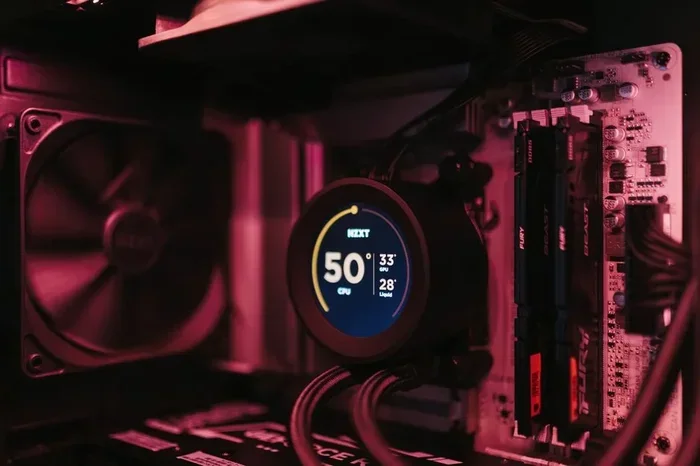
Use free software like Core Temp, HWMonitor, or Open Hardware Monitor to check your cpu temperature. Idle temperatures should stay below 50 degrees Celsius. Under full load, they should stay below 85 degrees Celsius. If you notice temperatures climbing, take action early.
Clean Your Computer on a Schedule
Set a reminder every three months to clean the inside of your computer. This prevents dust buildup from becoming a serious problem. A few minutes of maintenance can save you from expensive repairs.
Replace Thermal Paste Every Few Years
Even if your computer seems fine, replacing thermal paste every two to three years is a smart habit. It keeps the thermal interface between the cpu and heatsink in top condition.
When to Seek Professional Help
Most overheating fix steps are simple and safe to do yourself. But sometimes, the problem runs deeper. If you have cleaned your computer, replaced the thermal paste, and checked the fan, but the cpu overheating alert on startup still appears, it is time to see a professional.
A failing power supply can cause irregular voltages that lead to overheating. A damaged motherboard sensor may give false temperature readings. A cpu that is physically damaged from past overheating may run hotter than normal. These issues require expert diagnosis.
Do not ignore persistent warnings. Continuing to use an overheating computer can destroy the processor and other components. The cost of a repair is always less than the cost of replacing a fried motherboard or cpu.
Quick Tips to Remember
- Never ignore an overheating warning. It is your computer asking for help.
- Compressed air is your best friend for routine cleaning.
- Thermal paste is cheap insurance against heat damage.
- Good airflow beats expensive cooling in most cases.
- Monitor temperatures regularly so problems do not sneak up on you.
- Keep your computer elevated and ventilated for best results.
Final Thoughts
A cpu overheating alert on startup is your computer speaking to you. It is telling you that the cooling system needs attention. Most of the time, the cause is simple. Dust, old thermal paste, or a weak fan are the usual suspects. And the fixes are straightforward and affordable.
Do not let an overheating warning turn into a broken computer. Take action the moment you see the alert. Clean your system, check your fans, and replace thermal paste when needed. These small steps go a long way in keeping your processor healthy and your computer running smoothly for years to come.
Stay proactive. Your computer will thank you with better performance, longer lifespan, and fewer surprises every time you hit the power button.
Frequently Asked Questions
What causes a CPU overheating alert on startup?
The most common causes are dust buildup inside the case, dried out thermal paste, a faulty or slow cpu fan, poor airflow, and high room temperatures. Sometimes heavy startup programs also push the processor hard enough to trigger the alert during boot.
Is it safe to use my computer when it shows an overheating warning?
It is not recommended. While your computer may still turn on, continued use while overheating can damage the processor and other components. Shut it down, let it cool, and address the root cause before using it again.
How often should I replace the thermal paste on my CPU?
Every two to three years is a good rule of thumb. If you notice rising temperatures or frequent overheating alerts, replacing the thermal paste is one of the first steps you should take to bring temperatures back down.
Can a laptop overheating alert on startup be fixed at home?
Yes, in most cases. Cleaning the vents with compressed air, using a cooling pad, and ensuring the laptop sits on a hard flat surface can help. If the problem persists, opening the laptop to clean internal fans and replace thermal paste may be needed.
What temperature is too high for a CPU at startup?
Normal idle temperature is below 50 degrees Celsius. If your cpu shows 60 degrees or higher right at startup, something is wrong. Temperatures above 80 degrees during normal use indicate a serious cooling problem that needs immediate attention.
Can a failing power supply cause CPU overheating?
Yes, indirectly. A failing power supply can deliver unstable voltages to the motherboard and processor. This instability can cause components to draw more power and generate excess heat, leading to pc overheating even if the cooling system is working fine.