Sony Vaio Laptop Black Screen on Startup Repair Tips
A black screen on startup is one of the most common Sony Vaio problems, but it’s usually fixable at home. This guide covers everything from simple hard resets to display cable checks and safe mode repairs. You’ll learn step-by-step solutions that work for Vaio models with LED lights on but no display.
Seeing a black screen on startup on your Sony Vaio laptop can be incredibly frustrating. You press the power button, hear the fans spin, but the display stays completely dark. This guide walks you through proven Sony Vaio black screen repair tips that actually work. Whether your Vaio won’t turn on at all or the lights are on but there’s no picture, you’ll find actionable steps here. By the end, you’ll know exactly how to diagnose and fix the problem yourself.
A Sony Vaio showing a black screen on startup is more common than you might think. It can happen on older Vaio models and newer ones alike. The issue might look scary, but most causes are simple to address. Sony Vaio troubleshooting starts with understanding what your laptop is trying to tell you. A completely dark screen with no lights points to power problems. If the LED is on but you see nothing, the issue is likely the display or its connections. Sometimes a Vaio black screen is just a stuck pixel or a failed backlight. Other times it signals a deeper Sony Vaio hardware failure. This article gives you the tools to tell the difference and apply the right fix.
Before you try anything, listen carefully to your laptop. Does it make any beeping sounds? Do the Caps Lock or Num Lock lights blink when you press them? These clues help you narrow down the Sony Vaio startup problem. A laptop black screen fix is often just a matter of resetting the power circuit or reseating a cable. You don’t need to be a technician. With patience and the right steps, you can bring your Vaio display not working back to life.
Key Takeaways
- Start with a hard reset: This simple fix resolves many Sony Vaio black screen issues caused by static charge.
- Check power and battery first: A dead battery or faulty adapter often mimics a black screen of death on Vaio models.
- Inspect the display cable and inverter: Loose or damaged cables are a top reason your Vaio screen stays black.
- Use Safe Mode or Startup Repair: These built-in tools can fix software-related black screen problems without reinstalling Windows.
- Know when to call a pro: Hardware failure like a bad motherboard or LCD panel needs expert diagnosis.
📑 Table of Contents
Why Your Sony Vaio Shows a Black Screen on Startup
Understanding the root cause is the first step in any Sony Vaio black screen repair. The problem usually falls into three categories: power, display hardware, or software. Each category has clear signs that help you identify it quickly.
Common Causes of the Black Screen
- Static charge buildup: This is the number one reason for a Vaio black screen. A small static shock can confuse the motherboard and prevent the display from initializing.
- Faulty power adapter or dead battery: If your Sony Vaio won’t turn on at all, the power source is the first suspect. A failing adapter can deliver power but not enough to light the screen.
- Loose or damaged display cable: The cable connecting the motherboard to the LCD panel can work loose over time. This causes a laptop screen not displaying even when the laptop is fully powered.
- Failed inverter or backlight: Older Vaio models use an inverter to power the LCD backlight. When it fails, the screen goes black but you might still see a faint image with a flashlight.
- Corrupted display drivers or Windows update: A recent driver update or Windows patch can trigger a boot loop black screen Vaio. The laptop runs, but the display signal never reaches the screen.
- Motherboard or GPU failure: In rare cases, a Sony Vaio hardware failure on the motherboard or graphics chip causes a permanent black screen. This is more common in models that run hot.
When the Lights Are On But There’s No Display
If your Sony Vaio powers on—fans spin, LED lights glow, hard drive clicks—but the screen remains pitch black, the problem is likely not the power supply. This is a classic sign of a display path failure. You might be dealing with a Vaio LED lights on but no display scenario. The laptop is alive, but the signal isn’t reaching the panel. Try shining a bright flashlight at the screen at a slight angle. If you can faintly see your desktop or the Windows login screen, the backlight or inverter has failed. If you see nothing at all, the issue is likely the screen cable, the LCD panel itself, or a GPU failure.
The Black Screen of Death on Vaio Models
The term black screen of death Vaio strikes fear into users. It usually happens during or after a Windows update or when the system overheats. Your Vaio starts normally, then suddenly the screen goes black and never comes back. This is often a driver conflict or a failed Windows update that corrupted the display subsystem. The good news is that you can still access your data if you can boot into Safe Mode or use an external monitor. Sony Vaio troubleshooting in this state focuses on bypassing the faulty display driver and rolling back the update.
Step-by-Step Sony Vaio Black Screen Repair
Now that you know the likely causes, let’s walk through the actual fixes. Follow these steps in order, starting with the simplest solutions. Each step builds on the last, and many users find their Sony Vaio black screen is resolved in the first few minutes.
Perform a Hard Reset First
A hard reset drains all residual power from the laptop. It clears static charge and resets the power management circuits. This is the single most effective Sony Vaio startup repair for a black screen with no obvious cause.
- Turn off the Sony Vaio completely. If the screen is black but the laptop seems on, hold the power button for 10 seconds to force shutdown.
- Unplug the AC adapter from the laptop.
- If your battery is removable, take it out. For sealed batteries, skip this step.
- Press and hold the power button for 30 seconds. This drains the capacitors.
- Reconnect the battery (if removed) and plug in the AC adapter.
- Press the power button normally and wait for the screen to light up.
Quick Tip: After a hard reset, listen for the Windows startup sound. If you hear it but still see black, the problem is almost certainly the display or its cable, not the power supply.
Check the Power and Battery
A Vaio power issue can mimic a black screen perfectly. If your laptop gets no power, it can’t send a signal to the display. Even if the LED shows a faint glow, the power might be too low to boot the graphics chip.
- Try a different wall outlet. A tripped breaker or faulty outlet can starve your Sony Vaio of power.
- Inspect the AC adapter brick. Look for frayed cables, bent pins, or burn marks. A damaged adapter often causes a Vaio won’t turn on situation.
- If you have a multimeter, check the adapter’s output voltage. It should match the label on the brick. A low voltage reading means the adapter is failing.
- For removable batteries, try running the laptop on AC power only with the battery removed. A swelling or dead battery can cause a black screen of death Vaio even when plugged in.
Inspect the Display Cable and Inverter
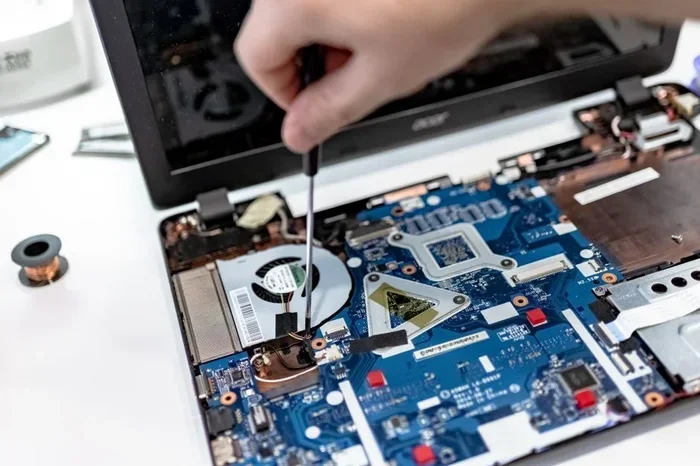
The display cable is a flat ribbon that runs from the motherboard through the hinge to the LCD panel. Over time, it can fray, tear, or lose contact. This is a very common reason your Vaio screen stays black even though the laptop is fully powered.
- Carefully open your Sony Vaio and remove the battery (if possible).
- Locate the display cable connector on the motherboard. It’s usually a small thin cable plugged into a socket near the hinges.
- Gently unplug it and plug it back in, making sure it clicks firmly into place.
- Check the cable for any visible tears or pinched areas, especially near the hinge.
- If your model has an inverter board (common in older Vaio models), check its connections too. The inverter powers the backlight. A dead inverter means the screen is dark but you can faintly see an image with a flashlight.
Common Mistake: Many users force the cable connector back in without aligning the latch. This can damage the socket. Always line up the connector carefully and push gently until it seats.
Boot into Safe Mode or Use Startup Repair
If your Sony Vaio powers on but the screen stays black due to a software issue, Safe Mode is your best friend. Safe Mode loads only the essential drivers, bypassing any faulty display software.
- Force shutdown your Vaio three times in a row during the boot process. On the fourth attempt, Windows will enter the Automatic Repair environment.
- Choose Troubleshoot > Advanced Options > Startup Settings.
- Click Restart and then press F4 or F5 to boot into Safe Mode.
- Once in Safe Mode, if you can see the desktop, you know the problem is a driver or recent update.
- Go to Device Manager, expand Display adapters, right-click your graphics driver, and select Uninstall device. Restart the laptop normally.
Another powerful tool is the built-in Startup Repair. From the same Advanced Options menu, select Startup Repair. Windows will scan for problems that prevent normal booting, including display driver failures that cause a Vaio black screen. This process can fix corrupted boot files without touching your personal files.
Update or Reinstall Display Drivers
Corrupted or outdated display drivers are a leading cause of the Sony Vaio black screen on startup. If your laptop boots to a black screen but you can still hear sounds or see the cursor faintly, a driver reinstall often fixes it.
- In Safe Mode, open Device Manager and uninstall the display adapter driver.
- Restart the laptop. Windows will install a generic display driver that usually works.
- Once you can see the desktop, go to Sony’s support page and download the latest display driver for your specific Vaio model.
- Install the driver and restart normally.
Expert Insight: Always note your exact Vaio model number (like SVF14N, SVE14A, etc.) before downloading drivers. Using the wrong driver can cause the Vaio display not working problem to return.
DIY Fixes vs. Professional Repair
Not every Sony Vaio black screen problem is a five-minute fix. Knowing when to DIY and when to seek professional help saves you time, money, and the risk of making things worse.
| Scenario | DIY Fix | Call a Professional |
|---|---|---|
| Black screen after static shock, hard reset fixes it | Yes. Hard reset and power cycle are simple and safe. | Not needed. |
| Faint image visible with flashlight | Maybe. You can try reseating the display cable or replacing the inverter if you’re comfortable opening the laptop. | Yes, if the cable is damaged or soldering is required. |
| No image at all, even with flashlight | Try Safe Mode and driver rollback. If you can’t see anything, further diagnosis is hard without an external monitor. | Likely needed. Could be a failed LCD panel, cable, or motherboard GPU. |
| Black screen after Windows update, Startup Repair fails | Try System Restore in Safe Mode to undo the update. | Call a pro if System Restore also fails or you need data recovery. |
| Laptop makes beeping codes and won’t boot | Limited. Beep codes indicate hardware failure like RAM or motherboard issues. | Yes. Hardware diagnostics require specialized tools. |
| Swollen battery or burning smell | Do not attempt to fix yourself. | Immediately seek professional help or contact Sony support. |
Quick Tip: Before taking your Sony Vaio to a repair shop, remove all personal data if possible. Back up your files using a hard drive enclosure or by connecting the Vaio’s hard drive to another computer as an external drive. This protects your data even if the motherboard is dead.
Preventing Future Black Screen Issues on Your Vaio
Once you’ve fixed the Sony Vaio black screen on startup, a few simple habits can prevent it from happening again. Prevention is always easier and cheaper than repair.
Keep Your Drivers Updated
Outdated drivers are a top trigger for Vaio black screen problems. Set a monthly reminder to check for driver updates, especially for the graphics and chipset drivers. Sony’s VAIO Care software (on older models) can automate this. On newer models, Windows Update handles most critical drivers.
Protect Against Power Surges
A sudden power surge can fry your Vaio’s power regulation circuits, leading to a Sony Vaio hardware failure and a black screen. Always plug your laptop into a surge protector or a UPS (uninterruptible power supply). Avoid using your Vaio during electrical storms.
Handle Your Laptop with Care
The display cable runs through the hinge. Opening and closing your Vaio roughly can stretch or pinch this cable over time. Open the lid gently from the center, not from one side. Avoid placing heavy objects on a closed laptop. These simple steps keep the Vaio screen cable intact and prevent a laptop screen not displaying issue years later.
Manage Heat and Ventilation
Overheating can cause the GPU to fail, resulting in a permanent black screen. Keep your Vaio’s vents clear of dust. Use it on a hard surface, not a bed or pillow. Consider a cooling pad if you use your laptop for long gaming or video sessions. A well-ventilated Sony Vaio is far less likely to suffer a black screen of death Vaio caused by thermal damage.
Final Thoughts on Fixing the Sony Vaio Black Screen
A black screen on startup on your Sony Vaio is a stressful experience, but it’s rarely a death sentence for the laptop. Most often, the fix is a simple hard reset, a reseated display cable, or a driver rollback. Even when the problem is deeper, the steps in this guide help you narrow down the cause and decide the best path forward. Sony Vaio troubleshooting doesn’t require expensive tools or years of experience. It just requires patience and a systematic approach. Start with the easiest fix and work your way up. If you reach the point where the Vaio black screen persists despite every step, take your laptop to a qualified technician with the diagnostics you’ve already done. You’ll save time and avoid unnecessary guesswork. Your Sony Vaio has given you years of service. With the right repair, it can keep going strong.
Frequently Asked Questions
Why does my Sony Vaio show a black screen but the lights are on?
This usually means the laptop is receiving power but the display signal isn’t reaching the screen. The most common causes are a loose display cable, a failed backlight or inverter, or a corrupted display driver. Try connecting an external monitor to see if the laptop is actually outputting video. If it does, the problem is in the Vaio’s internal display path.
Can a black screen on a Sony Vaio be caused by a dead battery?
Yes, a completely dead battery or a faulty AC adapter can cause a Vaio black screen even if the power LED glows faintly. The laptop might not have enough power to fully initialize the graphics chip. Try running the Vaio directly on the AC adapter with the battery removed to rule this out.
Is the Sony Vaio black screen of death a hardware failure?
Not always. The black screen of death Vaio is often caused by a software issue like a failed Windows update or a corrupted display driver. Before assuming hardware failure, try booting into Safe Mode, running Startup Repair, or rolling back the display driver. If those steps work, the problem was software, not hardware.
How do I force my Sony Vaio to show something on a black screen?
First, perform a hard reset by holding the power button for 30 seconds with the battery and AC adapter disconnected. If that doesn’t work, connect an external monitor via HDMI or VGA. If the external monitor shows an image, the Vaio’s internal screen, cable, or inverter is likely the culprit. If both screens stay black, the issue is deeper, possibly the motherboard or GPU.
What is the most common fix for a Sony Vaio black screen on startup?
The most common and effective fix is a hard reset. This drains all residual power and resets the motherboard’s power management circuits. It resolves static charge buildup, which is the leading cause of a Sony Vaio black screen on startup. Many users find their Vaio boots normally again after just this simple step.
Should I try to open my Sony Vaio to fix the black screen?
Only if you feel comfortable doing so and have the right tools. Opening the laptop voids the warranty on most models. If your Vaio is still under warranty, contact Sony support first. For older models, you can try reseating the display cable or checking the inverter. But if you’re unsure, it’s safer to take it to a professional to avoid accidental damage.