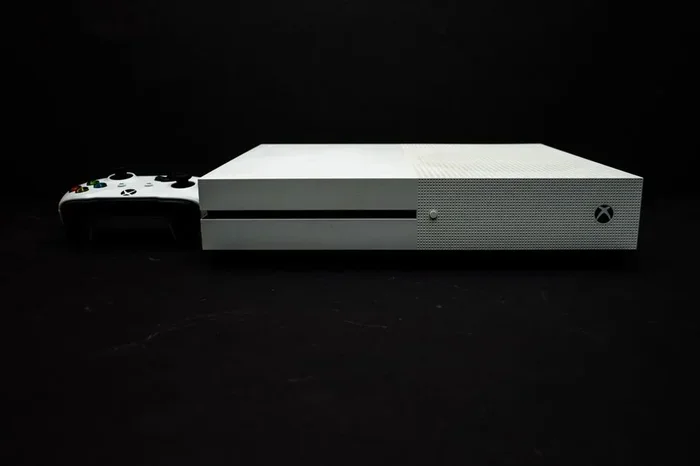
Xbox Series S Black Screen on Startup Wont Turn On
An Xbox Series S black screen on startup is a common but fixable issue. Whether your console won’t turn on at all or shows a black screen with power lights, this guide walks you through every solution step by step. You will learn how to perform a hard reset, check your power supply, fix HDMI signal problems, and know when to seek professional repair.
You press the Xbox button on your controller and… nothing happens. Or maybe the console lights up but the TV stays completely black. An Xbox Series S black screen on startup is one of the most frustrating experiences for any gamer. You just want to jump into your favorite game, and instead you are staring at a dark screen wondering what went wrong.
The good news is that this problem is very common and usually easy to fix. In most cases, the issue stems from power supply glitches, HDMI connection errors, or minor software hiccups. This guide covers every possible cause and gives you clear, step-by-step solutions to get your console running again. Let us dive in and solve this together.
Key Takeaways
- Power Supply Problems: A faulty power outlet or damaged power brick is the most common reason for an Xbox Series S black screen on startup.
- Hard Reset Fixes Most Cases: A simple cold boot clears temporary glitches and resolves the issue in many situations.
- HDMI Connection Matters: A loose or damaged HDMI cable can cause a black screen even when the console powers on.
- Firmware Issues Can Trigger Startup Failures: An interrupted update can leave your console stuck on a black screen.
- Know When to Seek Help: Hardware failure or motherboard issues require professional diagnosis and repair.
- Prevention Is Simple: Proper ventilation, surge protection, and regular maintenance reduce the risk of future black screen problems.
📑 Table of Contents
- Why Does the Xbox Series S Show a Black Screen on Startup?
- How to Fix Xbox Series S Black Screen on Startup
- When to Seek Professional Repair
- Comparison: Common Xbox Series S Startup Problems and Fixes
- How to Prevent Xbox Series S Black Screen Issues
- Expert Insights on Console Startup Problems
- Key Takeaways
- Frequently Asked Questions
- Conclusion
Why Does the Xbox Series S Show a Black Screen on Startup?
Understanding the root cause makes troubleshooting much easier. Several different issues can lead to an Xbox Series S black screen on startup, and each one requires a different fix. Let us look at the most common culprits.
Power Supply Failures
The number one reason for a console that will not turn on is a power supply problem. The Xbox Series S uses an external power supply brick that connects to the wall outlet and the console. If this brick is damaged, overheating, or plugged into a faulty outlet, your console will not receive power.
Common signs of a power supply issue include:
- No light on the console at all when you press the Xbox button
- The power brick light is orange or off instead of white
- The console turns on briefly then shuts off immediately
HDMI Signal and Display Problems
Sometimes the console powers on perfectly fine, but your TV or monitor shows nothing but a black screen. This usually means the HDMI signal is not reaching your display. It could be a loose cable, a damaged HDMI port, or incorrect TV input settings.
Check these things first:
- Is the HDMI cable firmly plugged into both the console and the TV?
- Are you using the correct HDMI port on your television?
- Is your TV set to the right input source?
Software and Firmware Glitches
An interrupted system update or a corrupted software file can cause the Xbox Series S black screen on startup even when hardware is perfectly fine. This happens when the console tries to boot but cannot load the operating system properly. The result is a black screen with no error message.
How to Fix Xbox Series S Black Screen on Startup
Now let us get into the solutions. Follow these steps in order, starting from the simplest fix. Most users find that one of the first three methods resolves the problem.
Step 1: Perform a Hard Reset (Cold Boot)
A hard reset is the easiest and most effective fix for startup black screen issues. It clears all temporary power and resets the console’s internal circuits. Here is how to do it:
- Unplug the power cable from the back of the Xbox Series S.
- Unplug the power brick from the wall outlet.
- Wait at least 30 seconds. Do not skip this step.
- Plug the power brick back into the wall.
- Reconnect the cable to the console.
- Press the Xbox button on the front of the console or on your controller.
This simple cold boot method resolves the issue for a large number of users. It takes less than a minute and requires no technical skills.
Step 2: Check the Power Supply and Outlet
If the hard reset did not work, inspect your power supply next. Look at the power brick for any visible damage like burn marks, swelling, or unusual smells. A damaged power brick will need to be replaced.
Also try these checks:
- Plug the console directly into a wall outlet instead of a power strip
- Test the outlet with another device to confirm it works
- Try a different power cable if you have a spare one
The Xbox indicator light should turn white when the console receives power. If it stays orange or does not light up at all, the power supply is likely the problem.
Step 3: Fix HDMI Connection Issues
A loose HDMI connection is one of the sneaky causes of a black screen. Your console might be working perfectly, but the signal never reaches your TV. Try these fixes:
- Unplug the HDMI cable from both ends and plug them back in securely
- Try a different HDMI cable if you have one available
- Test with a different HDMI port on your TV
- Make sure the HDMI cable is not bent or pinched
Some users report that using a high-speed HDMI 2.1 cable resolved their display issues. The Xbox Series S supports 4K output at 144Hz, so a quality cable matters.
Step 4: Force a Display Resolution Reset
If your console powers on but the screen stays black, the display resolution setting might be the culprit. The console may be outputting a resolution your TV cannot support. You can force a reset using the controller:
- Press and hold the Xbox button on your controller for 10 seconds to turn it off
- Press and hold the bind button and the Xbox button on the console at the same time
- Release both buttons when you hear a beep
- The console will cycle through display resolutions until it finds one that works
This method is very effective for fixing black screen issues caused by display mismatches.
Step 5: Update or Reinstall Console Software
If your Xbox Series S black screen on startup is caused by a corrupted firmware file, you may need to reinstall the system software. This requires a USB drive and a Windows PC.
Here is a simplified overview of the process:
- Download the latest console update file from Microsoft’s official website
- Format a USB drive to FAT32
- Create a folder named $SystemUpdate on the USB drive
- Place the update file inside that folder
- Plug the USB drive into your Xbox Series S
- Boot the console and follow the on-screen prompts
This is a more advanced fix, but it works well when software corruption is the root cause.
When to Seek Professional Repair
Most black screen issues are software or connection related and can be fixed at home. However, some problems indicate serious hardware failure that requires professional help.
Signs of Hardware Failure
Watch for these warning signs that your console may have a hardware problem:
- The console makes unusual clicking or grinding noises
- The power brick gets extremely hot very quickly
- The console smells like burning plastic
- The green light on the console turns on but there is no display at all, even after trying all software fixes
These symptoms could point to a motherboard failure or internal component damage. In these cases, contact Xbox Support or visit an authorized repair center. Do not attempt to open the console yourself, as this will void your warranty.
Comparison: Common Xbox Series S Startup Problems and Fixes
| Problem | Likely Cause | Best Fix |
|---|---|---|
| Console won’t turn on at all | Power supply failure | Hard reset or replace power brick |
| Console powers on but black screen | HDMI signal issue or firmware glitch | Check HDMI cable or force resolution reset |
| Console turns on then shuts off | Overheating or power surge | Let console cool down and check outlet |
| Green light but no display | Display output error or corrupted software | Reinstall system software |
| Intermittent black screen | Loose HDMI connection | Secure or replace HDMI cable |
How to Prevent Xbox Series S Black Screen Issues
Prevention is always better than repair. A few simple habits can keep your Xbox Series S running smoothly and help you avoid the dreaded black screen on startup.
Keep Your Console Well Ventilated
The Xbox Series S is a compact console, which means it can overheat if placed in a tight enclosed space. Always keep your console on a flat, hard surface with plenty of airflow around it. Never place it on carpet or inside a closed cabinet.
Use a Surge Protector
Power surges can damage your console and the power supply brick. Plugging your Xbox into a quality surge protector shields it from electrical spikes and extends the life of your hardware.
Keep Your System Updated
Microsoft regularly releases system updates that fix bugs and improve stability. Make sure your console is set to install updates automatically. This prevents the software glitches that can lead to a black screen.
Handle HDMI Cables With Care
Avoid bending or pinching your HDMI cable. Use cable management clips or ties to keep cables organized and prevent accidental disconnections. A well-maintained HDMI connection keeps your display working reliably.
Expert Insights on Console Startup Problems
According to Xbox support technicians, the vast majority of black screen complaints are resolved with a hard reset or an HDMI cable swap. Many users skip these basic steps and jump straight to complex fixes, which wastes time and frustration. Always start with the simplest solution first.
Another expert tip is to pay attention to the light patterns on your console. The Xbox uses different light behaviors to communicate its status. A solid white light means the console is running normally. A solid orange light means it is in standby or has a power supply issue. A flashing orange light indicates a serious hardware problem that needs immediate attention.
One more thing worth noting: if you recently moved your console or rearranged your entertainment setup, the black screen might simply be a new input source issue. Double-check your TV input settings before assuming something is broken.
Key Takeaways
- Start with a hard reset: A cold boot solves most Xbox Series S black screen on startup issues quickly and easily.
- Check the power supply: A faulty outlet or damaged power brick is the most common reason the console will not turn on.
- Inspect your HDMI cable: A loose or broken cable often causes a black screen even when the console is fully powered.
- Force a display reset: Holding the bind and Xbox buttons together cycles through resolutions and fixes display mismatches.
- Reinstall software for firmware issues: A corrupted update file can be replaced using a USB drive and a Windows PC.
- Know your hardware limits: Signs of motherboard failure require professional repair, not DIY fixes.
- Prevent future problems: Good ventilation, surge protection, and regular updates keep your console healthy long term.
Frequently Asked Questions
Why does my Xbox Series S show a black screen but the light is on?
This usually means the console is powered on but the display signal is not reaching your TV. Check your HDMI cable connection, try a different HDMI port on your TV, and make sure your TV input source matches the port you are using. A forced display resolution reset often fixes this exact problem.
How do I force my Xbox Series S to turn on when it shows a black screen?
Perform a hard reset by unplugging the power cable from the back of the console and the power brick from the wall. Wait 30 seconds, then plug everything back in and press the Xbox button. This cold boot clears temporary glitches and forces the console to restart properly.
Can a faulty HDMI cable cause an Xbox Series S black screen on startup?
Absolutely. A damaged or loosely connected HDMI cable is one of the most common reasons for a black screen. Even if the console powers on normally, a bad cable prevents the video signal from reaching your TV. Try a different HDMI cable to rule this out quickly.
Is the Xbox Series S black screen on startup a sign of a broken console?
Not usually. In most cases, the problem is caused by a simple power supply issue, HDMI connection error, or software glitch. Hardware failure is rare and typically comes with other warning signs like unusual noises or burning smells. Try all the software and connection fixes before assuming the console is broken.
How long should I wait during a hard reset before plugging the console back in?
Wait at least 30 seconds. This gives the console’s internal capacitors enough time to fully discharge, which clears any residual power that might be causing the glitch. Some people wait a full minute to be safe, and that works too.
What should I do if none of the fixes work for my Xbox Series S black screen on startup?
If you have tried every step in this guide and the black screen persists, contact Xbox Support directly. They can run remote diagnostics, arrange a repair, or replace your console if it is still under warranty. Do not attempt to open the console yourself, as this will void your warranty and could cause further damage.
Conclusion
Dealing with an Xbox Series S black screen on startup can feel overwhelming, but the truth is that most cases are easy to fix. Start with a simple hard reset, check your power supply and HDMI connections, and work your way through the solutions in this guide. You will be back to gaming in no time.
The key is to stay patient and follow each step carefully. Do not skip the basics like checking cables and outlets, because those simple fixes solve the majority of problems. And if the issue turns out to be hardware related, you now know exactly when to reach out for professional help.
Take action today. Try the hard reset first, then work through the other fixes one by one. Your Xbox Series S deserves to be running smoothly, and with the right approach, you can get it back up and playing in just a few minutes.