Desktop Virtualization in Cloud Computing for Beginners
Desktop virtualization in cloud computing lets users access a full desktop environment from any device, anywhere in the world. It works by hosting the operating system and applications on remote servers instead of your local machine. This technology is transforming how companies manage IT, support remote work, and cut costs. Whether you are a student, freelancer, or IT professional, understanding this concept opens up powerful new possibilities.
Have you ever wondered how people access their work computers from a laptop at a coffee shop or a tablet at home? The answer lies in desktop virtualization in cloud computing. This technology has quietly revolutionized the way we think about computers, workspaces, and IT management.
At its core, desktop virtualization means running a desktop operating system on a remote server instead of your local computer. You then stream that desktop to your device over the internet. It sounds complex, but the experience feels surprisingly simple. You open a window, and there is your familiar desktop, complete with all your apps and files.
Whether you are a curious beginner or a small business owner exploring new tech, this guide breaks everything down in plain language. Let us walk through the fundamentals together.
Key Takeaways
- Desktop virtualization in cloud computing separates the desktop environment from the physical device, giving you flexibility and freedom.
- Virtual Desktop Infrastructure (VDI) is the most common approach, where a central server hosts each user’s desktop.
- Cloud desktops reduce hardware costs, simplify IT management, and improve security for organizations of all sizes.
- Desktop as a Service (DaaS) lets businesses rent virtual desktops from cloud providers, removing the need for on-premise servers.
- Remote work, education, healthcare, and finance are among the top industries benefiting from virtual desktop solutions.
- Getting started requires choosing a provider, picking the right desktop virtualization model, and ensuring a stable internet connection.
- Common mistakes like ignoring bandwidth needs or skipping security planning can undermine the entire setup.
📑 Table of Contents
What Is Desktop Virtualization in Cloud Computing?
Desktop virtualization in cloud computing is a technology that creates a virtual version of a desktop computer and hosts it on a remote server. Instead of installing Windows or Linux directly on your laptop or PC, the operating system lives in a data center somewhere else. You connect to it using any device with an internet connection.
Think of it like watching a movie on Netflix. The movie does not live on your TV. It lives on a server somewhere, and you stream it. Cloud desktops work the same way. The desktop lives in the cloud, and you stream it to your screen.
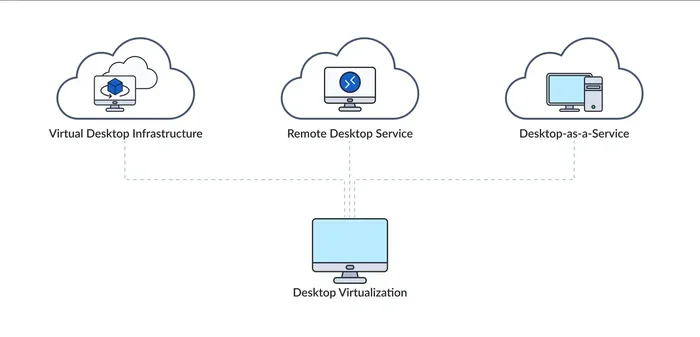
This approach is also known as Virtual Desktop Infrastructure (VDI) or Desktop as a Service (DaaS). These terms are often used interchangeably, but they have slightly different meanings. VDI usually refers to a self-hosted setup, while DaaS means a third-party provider manages everything for you.
How Is It Different from Traditional Computing?
In a traditional setup, your computer does all the heavy lifting. The processor, memory, and storage live inside your machine. If your laptop breaks, your data and apps might be lost.
With desktop virtualization, the heavy lifting happens on a remote server. Your local device, often called an endpoint device, simply displays the desktop and sends your keystrokes and mouse clicks back. This means your data stays safe in the cloud, even if your device is lost or damaged.
How Does Desktop Virtualization Work?
Understanding how desktop virtualization in cloud computing works helps you appreciate its power. Let us break it down step by step.
Step 1: The Server Sets Up the Virtual Desktop
A powerful server in a data center creates a virtual machine (VM). This VM acts like a complete computer. It has its own operating system, memory, and storage. A software layer called a hypervisor manages these virtual machines, making sure each one gets the resources it needs.
Step 2: The User Connects Remotely
You use a thin client, a laptop, a tablet, or even a smartphone to connect to the virtual desktop. A remote desktop protocol (like RDP or HDX) transmits the screen display to your device in real time. You type on your keyboard, and your input travels back to the server instantly.
Step 3: The Desktop Responds
The server processes everything. When you open a browser, run a spreadsheet, or play a video, the server handles the work. It sends back the visual result to your screen. Because the processing happens remotely, even a basic laptop can run demanding applications smoothly.
Step 4: Data Stays Secure
Your files and data never leave the data center. Nothing is stored on the endpoint device unless you explicitly save it there. This makes desktop virtualization solutions much more secure than traditional setups, especially for businesses handling sensitive information.
Types of Desktop Virtualization Models
Not all virtual desktops are the same. Different models suit different needs. Here are the most common types you should know about.
Persistent vs. Non-Persistent Desktops
Persistent desktops remember your settings, files, and preferences every time you log in. It feels like using your own personal computer. You can install apps, save documents, and customize the desktop however you like.
Non-persistent desktops reset to a clean state every time you log out. They are great for shared environments like schools or call centers. Each user gets a fresh, identical desktop every session. This model is easier to manage and more secure, but it offers less personalization.
VDI vs. DaaS
VDI (Virtual Desktop Infrastructure) means you build and manage the virtual desktop environment yourself. You buy servers, install a hypervisor, and handle all the maintenance. This gives you full control but requires significant IT expertise and upfront investment.
DaaS (Desktop as a Service) outsources the entire setup to a cloud provider. Companies like Amazon Web Services, Microsoft Azure, and Citrix offer DaaS solutions. You pay a monthly fee per user, and the provider handles servers, updates, and security. DaaS is ideal for small businesses and teams that want cloud-hosted desktops without the management headache.
Session-Based Computing
Session-based computing is another approach. Instead of giving each user a full virtual machine, multiple users share a single operating system instance. Each user gets their own session with isolated resources. This model is cost-effective and works well for organizations with large numbers of users doing similar tasks.
Benefits of Desktop Virtualization in Cloud Computing
Desktop virtualization in cloud computing offers a long list of advantages. Let us explore the biggest ones.
Cost Savings
One of the most compelling reasons to adopt virtual desktop solutions is cost reduction. You do not need expensive, high-performance computers for every employee. Thin clients or older devices can handle virtual desktops because the server does the processing. This slashes hardware costs significantly.
IT teams also spend less time on maintenance. Updates, patches, and security fixes happen on the server side. One update applies to all users at once, saving hours of technician work.
Enhanced Security
Data breaches are a major concern for businesses today. With desktop virtualization, your data never lives on a local device. If a laptop is stolen, the thief gets nothing more than a screen display. All sensitive files remain safely inside the data center.
IT administrators can also enforce strict access controls, monitor user activity, and isolate virtual desktops from each other. This layered security approach makes desktop virtualization solutions especially attractive for industries like healthcare and finance.
Flexibility and Remote Work
The rise of remote work has made cloud desktops more popular than ever. Employees can access their full work desktop from home, on the road, or while traveling internationally. They use whatever device they prefer, and the experience remains consistent.
This flexibility boosts productivity and employee satisfaction. Workers are not tied to a single physical machine. They can pick up right where they left off, no matter where they are.
Simplified IT Management
Managing dozens or hundreds of physical computers is a nightmare for IT teams. With desktop virtualization in cloud computing, IT staff manage a central image. They can deploy new desktops, push software updates, and troubleshoot issues from a single dashboard.
This centralized approach reduces downtime and makes scaling much easier. Need to add 50 new users next month? Provision 50 new virtual desktops in minutes.
Key Use Cases and Industries
Desktop virtualization is not just a tech trend. It solves real problems across many industries. Let us look at where it makes the biggest impact.
Remote and Hybrid Work Environments
Companies with distributed teams rely on cloud-hosted desktops to keep everyone connected. Employees access the same corporate desktop whether they are in the office or at home. This ensures consistency, security, and seamless collaboration.
Education and Training
Schools and universities use virtual desktop environments to give students access to specialized software. A computer lab can run expensive applications like CAD tools or video editing software without putting that software on every student laptop. Each student logs in and gets a fully equipped virtual desktop.
Healthcare
Hospitals and clinics handle sensitive patient data every day. Desktop virtualization keeps that data secure and compliant with regulations like HIPAA. Doctors and nurses can access patient records from any workstation in the facility without storing data locally.
Call Centers and Customer Service
Call centers often use non-persistent desktops to give agents a clean, consistent workspace for every shift. This reduces setup time and ensures a standardized experience across the team.
Creative and Design Agencies
Graphic designers and video editors need powerful computing resources. Cloud desktops with high-performance GPUs let creative professionals run demanding software without investing in expensive workstations. They can access their virtual desktop environment from a lightweight laptop and still get professional-grade performance.
Common Mistakes to Avoid
Jumping into desktop virtualization in cloud computing without a plan can lead to frustration. Here are some common pitfalls to watch out for.
Underestimating Bandwidth Requirements
Virtual desktops depend heavily on a stable internet connection. If your network bandwidth is too low, the desktop will lag, freeze, or disconnect. Always test your network capacity before rolling out cloud desktops to your team.
Ignoring Security Planning
While desktop virtualization is inherently more secure than traditional computing, it is not immune to threats. You still need strong passwords, multi-factor authentication, and regular security audits. Do not assume the cloud provider handles everything.
Choosing the Wrong Desktop Model
Not every user needs the same type of virtual desktop. Some need persistent desktops with full customization. Others work fine with non-persistent, session-based setups. Choosing the wrong model leads to wasted resources or frustrated users.
Overlooking User Training
Even though virtual desktops feel familiar, there is a learning curve. Users need to understand how to save files properly, connect from different devices, and troubleshoot basic connection issues. Providing clear training prevents support headaches down the road.
How to Get Started with Desktop Virtualization
Ready to explore desktop virtualization in cloud computing? Here is a practical roadmap to get you started.
- Define your goals. Are you supporting remote work, reducing hardware costs, or improving security? Your goals will shape your choice of virtual desktop infrastructure.
- Evaluate providers. Look at DaaS providers like AWS WorkSpaces, Microsoft Azure Virtual Desktop, and Citrix DaaS. Compare pricing, features, and scalability.
- Assess your network. Make sure your internet connection can handle cloud desktop traffic. Aim for at least 5-10 Mbps per user for a smooth experience.
- Start small. Pilot the technology with a small team before rolling it out company-wide. Gather feedback and identify any issues early.
- Train your users. Provide clear instructions and support. Help your team feel comfortable with the new virtual desktop environment.
- Monitor and optimize. Use analytics tools to track performance, usage patterns, and costs. Adjust your setup as needed to get the best results.
Desktop virtualization in cloud computing is not just a fancy tech term. It is a practical, powerful tool that makes work more flexible, secure, and efficient. Whether you are a beginner or an experienced IT professional, understanding this technology gives you a serious edge in today’s digital world.
The beauty of cloud desktops is that they adapt to your needs. You can scale up or down, access from anywhere, and keep your data safe without breaking the bank. As remote work continues to grow and businesses demand more from their IT infrastructure, virtual desktop solutions will only become more essential.
Start small, stay curious, and keep learning. The world of desktop virtualization is vast, and there is always something new to discover. You now have the foundation to explore it with confidence.
Frequently Asked Questions
What is the difference between VDI and DaaS?
VDI (Virtual Desktop Infrastructure) means you host and manage the virtual desktops on your own servers. DaaS (Desktop as a Service) means a cloud provider manages everything for you. DaaS is simpler and more cost-effective for most small to mid-sized businesses.
Do I need a powerful computer to use a virtual desktop?
No, that is one of the biggest advantages. Cloud desktops do the processing on a remote server, so even an older laptop or a basic thin client can deliver a smooth experience. You just need a reliable internet connection.
Is desktop virtualization secure?
Yes, desktop virtualization is generally more secure than traditional computing. Your data stays in the data center and never resides on the local device. However, you should still follow best practices like using strong passwords and enabling multi-factor authentication.
Can I access my virtual desktop from a mobile device?
Absolutely. Most virtual desktop solutions offer apps for iOS and Android. You can access your full desktop from a phone or tablet, making it easy to work from anywhere.
How much does desktop virtualization cost?
Costs vary depending on the provider and the model you choose. DaaS typically charges a monthly fee per user, which can range from $50 to $200 or more. VDI requires upfront investment in servers and infrastructure but may be cheaper in the long run for large organizations.
What internet speed do I need for a virtual desktop?
A stable connection with at least 5-10 Mbps per user works well for most tasks. If you are running video editing or 3D rendering applications, you may need higher bandwidth for the best experience.
=== CONCLUSION ===
Desktop virtualization in cloud computing is a game-changer for how we work, learn, and manage technology. It takes the burden off your local device, keeps your data safe in the cloud, and gives you the freedom to access your desktop from anywhere. From VDI to DaaS and session-based computing, there is a model that fits almost every need.
The benefits are clear: lower costs, stronger security, better flexibility, and simpler IT management. Industries like healthcare, education, finance, and creative services are already reaping the rewards. And as technology continues to evolve, cloud desktops will become even more powerful and accessible.
If you are just starting out, remember to define your goals, choose the right provider, and invest in user training. Avoid common pitfalls like underestimating bandwidth or skipping security planning. With the right approach, desktop virtualization can transform the way you work and open doors you never imagined.