Your PC Keeps Blue Screening on Startup Try These Fixes
A PC that keeps blue screening on startup is frustrating, but it is usually fixable at home. This guide walks you through the most common causes, from driver conflicts to bad RAM, and gives you clear steps to resolve each one. By the end, you will know exactly what to check and how to get your system running smoothly again.
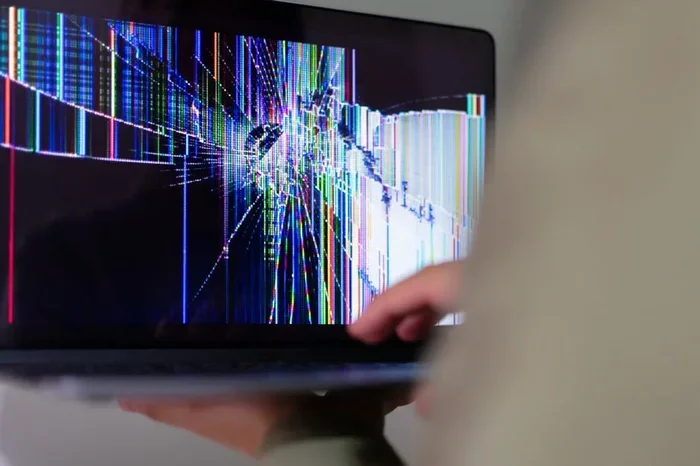
Nothing kills your morning faster than sitting down at your desk, pressing the power button, and watching the blue screen of death appear again. Your PC keeps blue screening on startup, and you are left staring at a wall of confusing error codes. You are not alone. Millions of Windows users face this exact problem every single day.
The good news? Most causes of a pc keeps blue screening on startup issue are simple to fix. You do not need to be a tech expert. You do not even need to spend money on a repair shop. With the right guidance, you can diagnose and solve the problem yourself in under an hour.
This guide covers every major cause of startup blue screens. It gives you step-by-step fixes, practical tips, and real-world advice. Whether your system crashes during the Windows logo or right after login, you will find the solution here.
Key Takeaways
- Driver conflicts are the #1 cause: Outdated or incompatible drivers trigger most startup BSOD errors.
- Safe Mode is your best friend: It lets you troubleshoot without the crash loading.
- Run memory and disk checks: Faulty RAM and bad sectors often hide behind blue screens.
- System Restore can undo the damage: Rolling back to a working state fixes many startup crashes fast.
- Check your hardware first: Overheating and loose cables cause more problems than people think.
- Event Viewer tells the story: Reading crash logs points you to the real problem quickly.
📑 Table of Contents
- Why Does Your PC Keep Blue Screening on Startup?
- Step 1: Boot Into Safe Mode
- Step 2: Check for Driver Conflicts
- Step 3: Run Windows Memory and Disk Checks
- Step 4: Use System Restore to Undo Recent Changes
- Step 5: Check for Overheating and Hardware Issues
- Step 6: Read the Crash Logs with Event Viewer
- Prevention Tips to Stop Blue Screens From Returning
- When to Seek Professional Help
- Final Thoughts
Why Does Your PC Keep Blue Screening on Startup?
A blue screen error on startup happens when Windows encounters a critical problem it cannot recover from. The system shuts down to protect your hardware and data. The blue screen, officially called a BSOD error, displays a stop code that hints at the root cause.
Several things can trigger this crash during boot:
- Driver conflicts: Old or mismatched drivers fight with Windows during startup.
- Corrupted system files: Damaged Windows files break the boot process.
- Faulty RAM: Bad memory modules cause random crashes, especially at boot.
- Hard drive errors: Bad sectors on your disk can stop Windows from loading.
- Overheating: Dust buildup or a failing fan causes thermal shutdowns.
- Recent software changes: New programs or Windows updates can create incompatible software conflicts.
Each of these causes has a clear fix. The trick is knowing which one applies to your situation. That is where this guide comes in.
Step 1: Boot Into Safe Mode
Before you try anything else, you need to get into Safe Mode. This stripped-down version of Windows loads only the essential drivers and services. If your pc keeps blue screening on startup, Safe Mode lets you troubleshoot without the crash interrupting you.
How to Enter Safe Mode
Follow these steps to boot into Safe Mode on Windows 10 or 11:
- Force-restart your PC three times during the boot process. Turn it on, wait for the blue screen, then hold the power button to shut it off. Repeat this three times.
- On the fourth boot, Windows will enter the Windows Recovery Environment.
- Select Troubleshoot from the menu.
- Click Advanced Options.
- Choose Startup Settings.
- Click Restart and press F4 or F5 to enter Safe Mode.
Once you are in Safe Mode, your desktop will look basic. That is normal. You can now run diagnostics and uninstall problematic software without the crash getting in your way.
Quick Tip: If your PC blue screens before you even reach the login screen, Safe Mode is your only option. Do not skip this step.
Step 2: Check for Driver Conflicts
Driver conflicts are the single biggest reason a pc keeps blue screening on startup. When a driver is outdated, corrupted, or incompatible with your version of Windows, it can crash the system the moment it loads during boot.
How to Update Your Drivers
Here is how you check and update drivers safely:
- Open Device Manager by right-clicking the Start menu and selecting it from the list.
- Look for any devices with a yellow warning triangle. That signals a problem.
- Right-click each problematic device and select Update Driver.
- Choose Search automatically for drivers and let Windows find the latest version.
- Restart your PC and check if the blue screen still appears.
Pay special attention to your graphics card driver, network adapter, and storage controller. These three drivers load early in the boot process and are the most common culprits.
Roll Back a Problematic Driver
If a driver update caused the problem, you can roll it back. In Device Manager, right-click the device, go to Properties, and click the Roll Back Driver button. This reverts to the previous version that worked.
Expert Insight: Always download drivers directly from the manufacturer’s website. Third-party driver updater tools often install the wrong versions and cause more problems than they solve.
Step 3: Run Windows Memory and Disk Checks
Hardware problems are sneaky. Your pc keeps blue screening on startup might be caused by failing RAM or a damaged hard drive. Both of these issues produce random crashes that are hard to pin down.
Test Your RAM with Windows Memory Diagnostic
Windows has a built-in tool that checks your memory for errors:
- In Safe Mode, press Windows Key + R to open the Run dialog.
- Type mdsched.exe and press Enter.
- Choose Restart now and check for problems.
- Your PC will reboot and run a full memory test.
- When it finishes, Windows will show you the results.
If the tool finds errors, your RAM might be failing. Try reseating your memory sticks or testing one stick at a time to isolate the bad module.
Check Your Hard Drive for Errors
Bad sectors on your disk can also cause a system crash on boot. Use the built-in disk check utility:
- Open Command Prompt as Administrator in Safe Mode.
- Type chkdsk C: /f /r and press Enter.
- Type Y to schedule the check on the next restart.
- Restart your PC and let the scan run. It may take a while.
This tool repairs file system errors and marks bad sectors so Windows does not try to use them.
Step 4: Use System Restore to Undo Recent Changes
If your pc keeps blue screening on startup started after a recent change, System Restore can undo it. This feature rolls your system back to a previous state called a restore point.
How to Run System Restore
- Boot into the Windows Recovery Environment (use the three-restart method from Step 1).
- Select Troubleshoot.
- Click Advanced Options.
- Choose System Restore.
- Select a restore point from before the blue screens started.
- Follow the prompts and let Windows restore your system.
This method does not delete your personal files. It only removes programs and drivers installed after the restore point was created. It is one of the safest and fastest ways to fix a Windows startup crash caused by recent changes.
Step 5: Check for Overheating and Hardware Issues
Do not overlook the physical side of your PC. Overheating on startup is more common than most people realize. When dust clogs your fans or thermal paste dries out, your CPU can overheat within seconds of powering on.
Quick Hardware Checks
- Open your case: Use compressed air to blow out dust from fans and heatsinks.
- Check your fans: Make sure all fans spin when you power on. A dead fan means poor airflow.
- Reseat cables: Loose power cables or SATA connections can cause intermittent crashes.
- Check your BIOS: Reset your BIOS to default settings. A misconfigured BIOS can trigger a boot configuration error.
If you have recently added new hardware, remove it temporarily and see if the blue screens stop. New components sometimes cause driver conflict or power delivery issues that manifest as startup crashes.
Common Mistake: Many people ignore the last known good configuration option in the Advanced Startup menu. This setting reverts your system to the last known working state and can save you hours of troubleshooting.
Step 6: Read the Crash Logs with Event Viewer
Windows keeps detailed logs of every crash. The Event Viewer is a powerful tool that shows you exactly what went wrong. It is like reading a detective’s notebook for your PC’s problems.
How to Read Crash Logs
- Boot into Safe Mode.
- Press Windows Key + R and type eventvwr.msc.
- Navigate to Windows Logs and click System.
- Look for Critical or Error entries around the time of the crash.
- Note the stop error code displayed on the blue screen.
The stop error code is your biggest clue. Search for that specific code online along with the word “fix,” and you will often find a targeted solution. Common codes include 0x0000007E, 0x000000D1, and 0x0000001A, each pointing to a different type of problem.
Prevention Tips to Stop Blue Screens From Returning
Once you fix the immediate problem, you want to keep it from coming back. Here are simple habits that protect your system:
- Update Windows regularly: Patches fix known bugs that cause BSOD errors.
- Keep drivers current: Check for driver updates monthly, especially for your GPU and chipset.
- Avoid sketchy software: Free programs from unknown sources often bring hidden conflicts.
- Clean your PC every few months: Dust is the enemy of airflow and cooling.
- Use a surge protector: Power spikes can damage hardware and cause random crashes.
- Monitor temperatures: Free tools like HWMonitor let you watch your CPU and GPU temps in real time.
These small habits add up. A well-maintained PC rarely suffers from a system crash on boot.
When to Seek Professional Help
Most startup blue screens are fixable at home. But some situations need a professional touch:
- Your hard drive is making clicking noises — this suggests physical failure.
- Your PC blue screens even in Safe Mode — this points to a deeper corrupted system file issue.
- You have tried every step above and the problem persists — there may be a motherboard or CPU hardware fault.
- Your data is at risk — back up immediately and seek expert help.
A qualified technician can run advanced diagnostics, including a full memory dump analysis, to pinpoint problems that are invisible to standard tools.
Final Thoughts
Dealing with a pc keeps blue screening on startup problem is stressful, but it is almost always solvable. Start with Safe Mode, check your drivers, run memory and disk tests, and use System Restore if needed. Each step narrows down the cause and gets you closer to a working PC.
The key is patience. Do not panic when you see that blue screen. Follow the steps in this guide one at a time. Most people find that the fix is simpler than they expected. Your PC will be back to normal, and you will have the confidence to handle it if it ever happens again.
Take action today. Pick the step that matches your situation and start there. A smooth startup is just a few steps away.
Frequently Asked Questions
What causes a PC to blue screen on startup?
The most common causes are driver conflicts, corrupted system files, faulty RAM, hard drive errors, and recent software changes. Overheating and incompatible programs can also trigger a blue screen of death during boot.
How do I stop my PC from blue screening on startup?
Boot into Safe Mode, update your drivers, run memory and disk checks, and use System Restore to undo recent changes. These steps resolve the vast majority of BSOD errors on startup.
Is a blue screen on startup a sign of hardware failure?
Not always. While bad RAM or a failing hard drive can cause it, most startup blue screens are caused by software issues like driver conflicts or corrupted files. Hardware failure is only one possible cause.
Can a virus cause blue screen errors on startup?
Yes. Malware can corrupt system files or install incompatible drivers that crash Windows during boot. Run a full antivirus scan in Safe Mode to rule out this possibility.
What is the stop code on a blue screen and why does it matter?
The stop error code is a specific code displayed on the blue screen that identifies the type of crash. It helps you pinpoint the exact cause, whether it is a driver issue, memory problem, or something else entirely.
Should I be worried if my PC blue screens once and then works fine?
A single blue screen can happen from a temporary glitch. But if your pc keeps blue screening on startup repeatedly, it signals an ongoing problem that needs attention. Ignoring it can lead to data loss or worsening hardware damage over time.