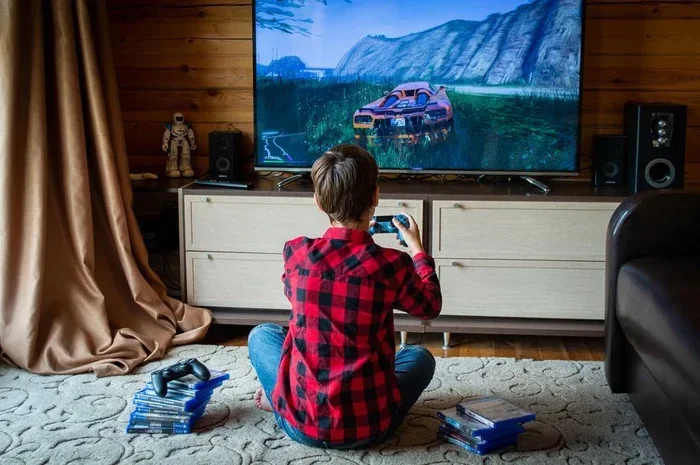
Ps4 Black Screen on Startup Why It Happens and How to Fix
A PS4 black screen on startup can stop your gaming session before it even begins. This common issue happens because of HDMI problems, corrupted files, overheating, or power supply failures. In this guide, you will learn the exact causes and step-by-step fixes to bring your console back to life. We cover safe mode tricks, hardware checks, and prevention tips that really work.
Nothing kills the excitement faster than pressing the power button on your PlayStation 4 and staring at a completely blank screen. The console hums to life. The blue light turns on. But the TV stays dark. This frustrating experience is known as a PS4 black screen on startup, and it affects thousands of gamers every year. You are not alone, and this problem is almost always fixable.
The good news is that most causes of a black screen are simple to address. You do not need to be a tech expert. Whether the issue comes from a loose cable, a software glitch, or a hardware failure, there is a clear path to getting your console back up and running. This guide walks you through every possible cause and every proven fix. Let us dive right in.
Key Takeaways
- HDMI connection issues are the most common reason for a PS4 black screen on startup.
- Booting into Safe Mode and rebuilding the database can resolve software-related black screens.
- Overheating and power supply problems can cause persistent display failures.
- Simple fixes like cable replacement and TV resolution changes solve most cases.
- Regular maintenance prevents black screen issues from returning.
- Professional repair may be needed if the motherboard or hard drive is damaged.
📑 Table of Contents
What Causes a PS4 Black Screen on Startup?
A PS4 black screen on startup does not happen randomly. There is always a reason behind it. Understanding the root cause helps you pick the right fix quickly. Here are the most common culprits.
HDMI Connection Problems
The most frequent reason for a black screen is a faulty or loose HDMI connection. The cable might be slightly out of place, or the port on your TV or console could be worn out. Sometimes the cable itself is damaged from bending or pulling. When the signal cannot travel from the PS4 to the TV, you get a blank screen even though the console is fully powered on.
Another HDMI-related issue is resolution mismatch. If your PS4 was set to a resolution your TV does not support, the screen will go black after startup. This often happens after a system update or when you switch TVs.
Corrupted System Software
The PS4 runs on a complex operating system. If a file gets corrupted during a power outage or an interrupted update, the console may fail to load the home screen. This results in a black screen even though the system is clearly running. Corrupted system files are a very common reason for this issue, especially after a failed software update.
Overheating and Thermal Issues
PlayStation 4 consoles generate a lot of heat during use. Without proper ventilation, internal components can overheat. When this happens, the system may shut down the display as a safety measure. Over time, dust buildup and dried-out thermal paste make overheating worse. If your console feels very hot to the touch before the black screen appears, overheating is likely the cause.
Power Supply Failures
A weak or failing power supply unit can cause all kinds of strange behavior. The console might turn on partially, with lights and sounds working but no video output. This happens when the power brick cannot deliver stable voltage to the system. Power strip issues, surge damage, and aging power cords all contribute to this problem.
Hard Drive Malfunctions
The PS4 relies on its internal hard drive to load the operating system. If the hard drive develops bad sectors or fails completely, the console cannot boot properly. A black screen on startup is one of the first signs of a dying hard drive. You might also notice clicking sounds or very slow loading times before the screen goes dark.
How to Fix a PS4 Black Screen on Startup
Now that you know the causes, let us get into the fixes. Work through these steps in order. Most people find a solution in the first few steps.
Step One: Check Your HDMI Cable and Ports
Start with the simplest fix first. Unplug the HDMI cable from both the PS4 and the TV. Inspect the cable for any visible damage, bends, or bent pins. Plug it back in firmly on both ends. If you have a spare HDMI cable, try swapping it out entirely. This alone fixes a huge number of black screen cases.
Also try a different HDMI port on your TV. Sometimes one port stops working while others remain fine. Use port one on your TV first, as it is usually the primary input.
Step Two: Change Your TV Resolution
If the HDMI connection is fine but the screen stays black, the resolution setting might be the problem. Here is how to fix it without seeing the screen:
- Turn off your PS4 completely. Unplug it from the wall.
- Connect the PS4 to a different TV or monitor that you know works.
- Boot the console and go to Settings, then Sound and Screen.
- Change the resolution to 720p or 1080p.
- Switch back to your original TV and test again.
This method forces the console to output a resolution that almost every TV supports. It is a very effective fix for resolution-related black screens.
Step Three: Rebuild the Database in Safe Mode
Safe Mode is a diagnostic environment on the PS4. It loads only the essential system software. One of the most powerful options in Safe Mode is Rebuild Database. This process scans the hard drive and reorganizes the system files. It does not delete your games or saves.
Here is how to access Safe Mode:
- Turn off your PS4 completely. Hold the power button until you hear two beeps.
- Connect your controller using a USB cable.
- Press the PS button on the controller.
- Select Option 5, which says Rebuild Database.
- Wait for the process to finish. It can take 30 minutes or longer.
After the rebuild is complete, restart your console normally. The black screen issue should be resolved in most cases.
Step Four: Restore File System
If Rebuild Database does not work, try the Restore File System option in Safe Mode. This fixes broken file structures on your hard drive. It also does not delete any of your data. Go back into Safe Mode and select Option 3, Restore File System. Let it run, then restart the console.
Step Five: Reinstall the System Software
When software corruption is severe, you may need to reinstall the PS4 operating system. You will need a USB drive formatted as FAT32 and a working computer. Download the latest system software from the official PlayStation website onto the USB drive. Then boot into Safe Mode and select Option 6, Initialize PS4. This reinstalls the system software from scratch.
Warning: This step erases all data on your console. Make sure you have backed up any important saves to the cloud or an external drive first.
Safe Mode Solutions for PS4 Black Screen
Safe Mode is your best friend when dealing with a PS4 black screen on startup. It gives you access to powerful repair tools that cannot be used from the normal home screen. Let us look at the most useful Safe Mode options.
Understanding Safe Mode Options
Safe Mode offers six main options. Each one addresses a different type of problem:
- Option 1: Restart System — A simple reboot that can clear minor glitches.
- Option 2: Change Resolution — Cycles through 480p, 720p, 1080p, and automatic settings.
- Option 3: Restore File System — Repairs broken file structures.
- Option 4: Rebuild Database — Reorganizes the hard drive for better performance.
- Option 5: Initialize PS4 — A full factory reset that keeps your saved data.
- Option 6: Initialize PS4 (Reinstall System Software) — Wipes everything and reinstalls the OS.
Work from Option 1 up to Option 6. Stop when the problem is resolved. Most people find relief at Options 3 or 4.
Hardware Issues That Cause Black Screen Problems
When software fixes do not work, the problem is likely hardware-related. Do not panic. Hardware issues can still be addressed, though some require professional help.
Overheating and the Blue Light of Death
The blue light of death is a well-known PS4 problem. The console blinks blue and then turns off without displaying anything on screen. This is often caused by overheating. The GPU or CPU fails to communicate properly when the internal temperature gets too high. Cleaning the dust out of your console and replacing the thermal paste on the processor can fix this issue. Make sure your console has plenty of airflow around it and is not sitting in a closed cabinet.
Power Supply and Electrical Issues
A failing power supply unit can cause intermittent black screens or no display at all. Check the power brick for any burn marks or unusual smells. Try plugging the PS4 directly into a wall outlet instead of a power strip or surge protector. Sometimes power strips cannot handle the current draw of a gaming console, leading to unstable power delivery.
Hard Drive Failure
If your PS4 makes clicking or grinding noises, the hard drive is likely failing. A dead hard drive prevents the system from loading the operating system, resulting in a black screen. You can test this by removing the hard drive and booting the console. If the PS4 at least reaches the Safe Mode menu without the hard drive connected, the drive is the problem. Replace it with a new 2.5-inch SATA hard drive or an SSD for better performance.
Motherboard and GPU Problems
In rare cases, the black screen is caused by a failing motherboard or graphics chip. This usually happens in older consoles that have been used heavily for many years. Signs of a motherboard issue include random shutdowns, graphical glitches before the black screen, and burning smells. Motherboard repairs require professional technicians and are often not cost-effective compared to buying a new console.
Preventing PS4 Black Screen on Startup
Prevention is always better than repair. A few simple habits can keep your PS4 running smoothly and help you avoid the black screen problem altogether.
Keep Your Console Clean
Dust is the enemy of any electronic device. Use compressed air to clean the vents on your PS4 every few months. Do not let dust build up around the fan intake. A clean console runs cooler and lasts longer. Place your PS4 in an open area where air can flow freely around it.
Use Quality Cables
Do not cheap out on HDMI cables. A good quality cable ensures a stable signal between your PS4 and TV. Replace any cables that show signs of wear or damage. If you run your console through an HDMI switch or splitter, make sure those devices are high quality and fully compatible with the PS4.
Keep Your Software Updated
Sony regularly releases system software updates that fix bugs and improve stability. Keep your PS4 updated to reduce the chance of software corruption. Enable automatic updates if possible, or check for updates manually every week or two.
Avoid Power Surges
Plug your PS4 into a surge protector to shield it from electrical spikes. Power surges can damage the power supply unit and other internal components. During thunderstorms, it is a good idea to unplug your console entirely.
Give Your Console Breaks
Long gaming sessions without breaks can cause your PS4 to overheat. Let the console cool down between extended play periods. If you notice the fan running louder than usual, take a break and let the system rest for a while.
When to Seek Professional Help
Most black screen issues can be fixed at home using the steps in this guide. However, there are times when professional help is the right call. If you have tried every software fix and the screen stays black, a hardware failure is likely. If you smell burning plastic or see visible damage to the console, stop using it immediately.
Professional repair shops can diagnose and fix motherboard issues, replace hard drives, and reapply thermal paste. Sony also offers official repair services if your console is still under warranty. Do not attempt to open the console yourself unless you have experience with electronics repair, as this can void your warranty.
Conclusion
A PS4 black screen on startup is a frustrating problem, but it is almost never permanent. From loose HDMI cables to corrupted system files, the causes are well understood and the fixes are within reach. Start with the simple steps like checking cables and changing resolution. Move on to Safe Mode repairs if those do not work. Address hardware issues like overheating and hard drive failure when needed.
By following the prevention tips in this guide, you can keep your console healthy and avoid running into this problem again. The key is to act quickly when the black screen appears. The longer you wait, the more potential damage can build up. Take action today, and your PS4 will be back to delivering great gaming experiences in no time.
Frequently Asked Questions
Why does my PS4 turn on but show a black screen?
The most common reason is an HDMI connection problem or a resolution mismatch. Try unplugging and replugging the HDMI cable, or connect the PS4 to a different TV to test. If the issue persists, boot into Safe Mode and try rebuilding the database.
Can a black screen on PS4 startup be fixed for free?
Yes, in most cases. The fixes covered in this guide, such as checking cables, changing resolution, and using Safe Mode tools, are all free. You only need to pay for repairs if a hardware component like the hard drive or power supply needs replacement.
Is the PS4 black screen the same as the blue light of death?
They are related but not exactly the same. The blue light of death refers to the console blinking blue and then shutting off. A black screen means the console stays on but produces no image. Both can be caused by overheating or software corruption.
How long does it take to rebuild the PS4 database?
The rebuild process usually takes between 30 minutes and a few hours, depending on the size of your hard drive and how much data is stored. The console may appear to freeze during this process, but that is normal. Let it finish without turning it off.
Will initializing my PS4 fix the black screen problem?
Yes, initializing the PS4 can fix black screen issues caused by corrupted software. However, this erases all data on the console. Make sure you back up your saved games and important files before proceeding. You can back up to the cloud or an external USB drive.
When should I stop trying to fix the black screen myself?
If you have tried all the software fixes in Safe Mode, checked your cables, and the screen still stays black, it is time to seek professional help. Hardware failures like a dead hard drive or motherboard issue need expert diagnosis. Contact Sony support or a trusted repair shop.