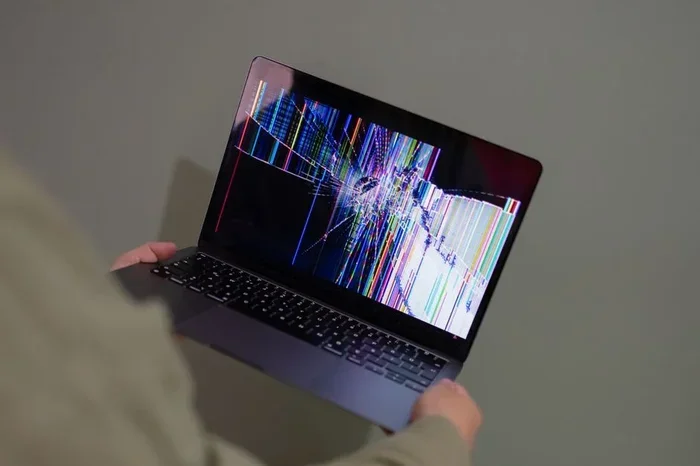
Windows 11 Blue Screen on Startup Complete Fix Guide
The Windows 11 blue screen on startup is a frustrating but fixable problem. This guide walks you through every solution, from simple fixes to advanced repairs. You will learn how to diagnose the error, boot into safe mode, update drivers, and more. Follow these steps to bring your PC back to life quickly and safely.
The Windows 11 blue screen on startup can scare anyone. One moment your PC is working fine, and the next you see a sad face and a blue wall of text. This error, also known as a BSOD or blue screen error, stops your computer from loading properly. It happens before you even get to your desktop. The good news is that most causes are fixable at home without calling a technician.
Whether the problem comes from a bad driver, corrupt system files, or failing hardware, this guide covers it all. You do not need to be a tech expert to follow along. Each step is simple and easy to understand. By the end, you will know exactly what to do and how to prevent it from happening again. Let us walk through it together.
This blue screen on startup Windows 11 issue affects many users every day. It can appear after a failed update, a new software install, or even a sudden power loss. Understanding the root cause is the first step toward a permanent fix. The error message on screen holds clues. Learning to read those clues makes the whole process much easier.
Key Takeaways
- Safe Mode is your first stop: It lets you troubleshoot without loading problematic drivers or software.
- Driver updates often fix the issue: Outdated or corrupt drivers are the most common cause of blue screens.
- Startup Repair can save your PC: This built-in tool automatically fixes many boot-related problems.
- Hardware issues matter too: Faulty RAM or overheating can trigger the blue screen on startup.
- Reset Windows as a last resort: If nothing else works, a clean reset often solves persistent problems.
- Always note the stop code: It tells you exactly what type of error caused the crash and guides your fix.
- Prevention is simple: Keep drivers updated, clean your PC regularly, and use a surge protector.
📑 Table of Contents
What Causes the Windows 11 Blue Screen on Startup
Before you fix anything, it helps to understand why this happens. The blue screen on startup in Windows 11 is not random. It is your PC telling you something went wrong during the boot process. Here are the most common reasons this error message appears.
Driver Conflicts and Outdated Drivers
Drivers are the software that lets Windows talk to your hardware. When a driver is outdated, corrupt, or incompatible, it can crash your system before it even starts. Graphics card drivers and storage drivers are the usual culprits. A stop code like DRIVER_IRQL_NOT_LESS_OR_EQUAL often points directly to this problem. A driver update alone can resolve this in many cases.
Corrupt System Files
Windows relies on thousands of system files to run. If even a few of them get damaged, your PC may fail to boot. This can happen after a bad update, a sudden shutdown, or a disk error. The system crash you see on screen is often the result of these missing or broken files. Running a simple scan can find and replace them.
Hardware Problems
Sometimes the issue is physical. Faulty RAM, a failing hard drive, or an overheating CPU can all trigger a blue screen error on startup. Overheating is especially common if your PC has not been cleaned in a while. Dust builds up inside and blocks airflow, causing components to overheat during the boot process. A hardware conflict between newly installed components can also cause this problem.
Windows Update Failures
Windows updates are meant to improve your system, but they can sometimes go wrong. A failed or interrupted update can leave your PC in a boot loop of blue screens. This is one of the most reported causes of the Windows 11 blue screen on startup problem. Always make sure your updates complete fully before shutting down.
Quick Tip: If your PC recently updated and then started showing the blue screen, try undoing the update first. This is often the fastest fix and saves you a lot of trouble.
How to Diagnose the Blue Screen Error
Diagnosing the problem saves you time. Instead of trying random fixes, you can target the real issue. Windows gives you several tools to find out what went wrong during the boot failure.
Check the Stop Code
When the blue screen appears, look for a stop code at the bottom of the error screen. It usually looks like a short code, such as CRITICAL_PROCESS_DIED or SYSTEM_THREAD_EXCEPTION_NOT_HANDLED. Write this down or take a photo with your phone. This code tells you exactly what type of error caused the crash. You can search the code online for specific solutions.
Use the Event Viewer
The Event Viewer is a built-in Windows tool that logs system errors. To access it, you need to boot into safe mode first. Once inside, open Event Viewer and look for critical errors around the time of the crash. This can point you toward the exact driver or file causing the system crash. Check the boot log for detailed information about what loaded before the failure.
Check for Overheating
If your PC shuts down and shows a blue screen, overheating might be the cause. Listen for your fans. Are they running loudly? Feel the vents. Are they hot? Overheating during startup is a sign that your cooling system is struggling. Clean the dust from your vents and fans to improve airflow and prevent future blue screen errors.
Common Mistake: Many people ignore the stop code and jump straight to fixes. This wastes time and often leads to the wrong solution. Always read the error message first. It guides you to the right fix every time.
Fix 1: Boot Into Safe Mode
Safe mode is your best friend when dealing with a Windows 11 blue screen on startup. It loads only the essential drivers and services. This lets you troubleshoot without the problem software getting in the way. Think of it as a stripped-down version of Windows that still works.
How to Enter Safe Mode
If your PC keeps showing the blue screen, you can force it into safe mode. Start by turning your PC off and on three times in a row. On the fourth try, Windows will enter the recovery environment. From there, go to Troubleshoot > Advanced Options > Startup Settings > Restart. Then press F4 or F5 to choose safe mode or safe mode with networking.
What to Do in Safe Mode
Once in safe mode, you can try several things to fix the boot failure:
- Uninstall recent software or updates that might be causing the crash.
- Run a virus scan to rule out malware as the cause.
- Check your drivers in Device Manager for any warnings or errors.
- Run System File Checker to repair any corrupt files.
- Use System Restore to go back to a time when your PC worked fine.
Safe mode gives you a clean slate to work from. Many users fix the blue screen error just by removing a recently installed program or rolling back a driver. It is the simplest and least invasive first step.
Fix 2: Update Drivers and Run Startup Repair
Outdated drivers and boot issues are the top two causes of the blue screen on startup. This section covers how to fix both problems effectively.
Update Your Drivers
To update drivers, open Device Manager in safe mode. Look for any device with a yellow warning icon. Right-click it and select Update Driver. Choose Search Automatically for Drivers. Windows will look for the latest version online and install it for you.
For your graphics card, visit the manufacturer’s website directly. NVIDIA, AMD, and Intel all provide updated drivers on their sites. Download the latest version and install it. A driver update alone fixes the Windows 11 blue screen on startup in many cases. Focus on your display adapter, storage controller, and network adapter first.
Run Startup Repair
Startup Repair is a built-in Windows tool that automatically fixes boot problems. To use it:
- Boot into the recovery environment using the three-restart method described above.
- Click Troubleshoot > Advanced Options > Startup Repair.
- Select your Windows account and enter your password.
- Let Windows scan and fix the problem automatically.
Startup Repair checks for missing or corrupt boot files. It also fixes incorrect registry entries that can prevent Windows from loading. This tool resolves many boot failure issues without any manual work. It is one of the easiest and most effective fixes available.
Run System File Checker
Open Command Prompt as an administrator in safe mode. Type sfc /scannow and press Enter. This tool scans your system files and replaces any that are damaged. It is a powerful way to fix corrupt files that cause the blue screen on startup. Let the scan complete fully before restarting your PC.
Expert Insight: Running both Startup Repair and System File Checker together gives you the best chance of fixing boot-related blue screens. They address different types of problems, so using both covers more ground and catches issues that one tool might miss.
Fix 3: Check Hardware and Memory
If software fixes do not work, the problem might be physical. Hardware issues are a common reason for the blue screen on startup Windows 11 error. Here is how to check each component step by step.
Run Windows Memory Diagnostic
Faulty RAM is a sneaky cause of blue screens. To check your memory, boot into the recovery environment and go to Troubleshoot > Advanced Options > Windows Memory Diagnostic. Choose Restart Now and check for Problems. Windows will test your RAM and report any errors. If it finds issues, you may need to replace the faulty memory stick.
Check Your Hard Drive
A failing hard drive can also cause boot crashes. Open Command Prompt in safe mode and type chkdsk /f /r. This command checks your disk for errors and fixes them. It may take a while to run, but it is worth the wait. This disk check can find bad sectors before they become a bigger problem.
Check for Overheating
Open your PC case and look for dust buildup. Use compressed air to clean the fans and heat sinks. If your PC is a laptop, make sure the vents are not blocked by fabric or dust. Overheating components can crash during startup and trigger the system crash you see on screen. Regular cleaning prevents this issue.
Common Mistake: People often overlook the CMOS battery. This small battery on your motherboard keeps your BIOS settings alive. If it dies, your PC may fail to boot correctly. Replacing the CMOS battery is cheap and easy, and it can solve mysterious startup problems that seem impossible to diagnose.
Hardware Check Comparison
| Hardware Check | Tool Used | What It Finds | Difficulty Level |
|---|---|---|---|
| Memory Test | Windows Memory Diagnostic | Faulty RAM modules | Easy |
| Disk Check | chkdsk command | Bad sectors and disk errors | Easy |
| Overheating Check | Visual inspection and cleaning | Dust buildup and blocked vents | Easy |
| CMOS Battery | Visual inspection | Dead battery causing BIOS issues | Moderate |
Hardware problems are less common than software issues, but they can be more serious. If your memory test or disk check finds errors, consider replacing the faulty component. A new RAM stick or hard drive is far cheaper than replacing an entire computer.
Fix 4: Reset or Reinstall Windows 11
If none of the above fixes work, it is time for a deeper solution. Resetting or reinstalling Windows 11 can fix persistent blue screen on startup problems. This should be your last resort, but it is very effective and often solves problems that nothing else can touch.
Reset This PC
Windows 11 has a built-in reset feature. To use it, boot into the recovery environment and go to Troubleshoot > Reset This PC. You have two options to choose from:
- Keep My Files: This removes apps and settings but keeps your personal files. It is the safer option and a good first choice.
- Remove Everything: This does a clean install and removes all files, apps, and settings. Use this only if you have backups of your important data.
Reinstall Windows 11
If resetting does not work, you can perform a clean installation. You will need a USB drive with at least 8 GB of space. Download the Windows 11 Media Creation Tool from Microsoft’s official website. Create a bootable USB drive, then boot from it and follow the on-screen instructions. A clean install gives you a fresh start. All corrupt files, bad settings, and problematic drivers are removed completely.
This is the most thorough fix for a Windows 11 blue screen on startup that will not go away. It essentially gives you a brand new operating system while keeping your personal files intact (if you choose the right option).
Quick Tip: Before you reset or reinstall, back up your important files. You can do this by booting into safe mode and copying files to an external drive or cloud storage. This simple step saves you from losing precious photos, documents, and memories.
Preventing Future Blue Screens
Once you fix the problem, you want to keep it fixed. Here are simple habits that prevent future blue screen errors on your Windows 11 PC:
- Keep your drivers and Windows updated regularly.
- Avoid installing software from untrusted sources.
- Run regular disk checks with the
chkdskcommand. - Keep your PC clean and well-ventilated at all times.
- Use a surge protector to prevent power-related crashes.
- Create regular system restore points before making changes.
Prevention is always easier than repair. These small habits can save you hours of frustration in the future. A few minutes of maintenance each month keeps your PC running smoothly.
Conclusion
The Windows 11 blue screen on startup is a scary experience, but it is almost always fixable. Start with safe mode and work your way through the solutions in this guide. Most users resolve the problem with a driver update, startup repair, or a simple system restore. If the issue persists, a hardware check or a full Windows reset will get your PC back on track.
Do not panic when you see that blue screen. Follow the steps in order, and you will be back to using your PC in no time. Each fix builds on the last, so even if the first step does not work, you are closer to the solution. Share this guide with anyone who is struggling with the same problem. A little knowledge goes a long way in fixing the blue screen on startup Windows 11 error and keeping your computer healthy for years to come.
Frequently Asked Questions
Can a virus cause the Windows 11 blue screen on startup?
Yes, malware and viruses can corrupt system files or interfere with drivers, leading to a blue screen error on startup. Always run a full virus scan if you suspect your PC is infected. Windows Defender and trusted third-party antivirus tools can help detect and remove threats before they cause serious damage.
How do I find the stop code on the blue screen?
The stop code appears at the bottom of the blue screen error message. It is usually a short code like SYSTEM_SERVICE_EXCEPTION or IRQL_NOT_LESS_OR_EQUAL. Write it down or take a clear photo with your phone. You can search this code online to find specific fixes tailored to your exact error message and problem.
Is it safe to reset Windows 11 if the blue screen keeps appearing?
Yes, resetting Windows 11 is safe and often fixes persistent boot problems. Choose the Keep My Files option first to protect your data. If that does not work, a clean reinstall is the next step. Always back up your important files before doing a full reset to avoid any data loss.
Can a dead CMOS battery cause the blue screen on startup?
Yes, a dead CMOS battery can cause boot failures and blue screens. The battery keeps your BIOS settings intact. When it dies, your PC may fail to initialize hardware correctly during startup. Replacing the CMOS battery is inexpensive and often solves these mysterious issues that seem impossible to diagnose otherwise.
How long does Startup Repair take to fix the blue screen?
Startup Repair usually takes between 15 and 45 minutes. The time depends on the severity of the problem and the speed of your hard drive. Let the tool run without interrupting it. If it fails to fix the issue, move on to other solutions like driver updates or a system restore point.
Should I update all my drivers at once to fix the blue screen?
It is best to update drivers one at a time, starting with your graphics and storage drivers. Updating all drivers at once can sometimes introduce new conflicts. Focus on the drivers most likely to cause the Windows 11 blue screen on startup, and check for compatibility before installing any updates from third-party sources.