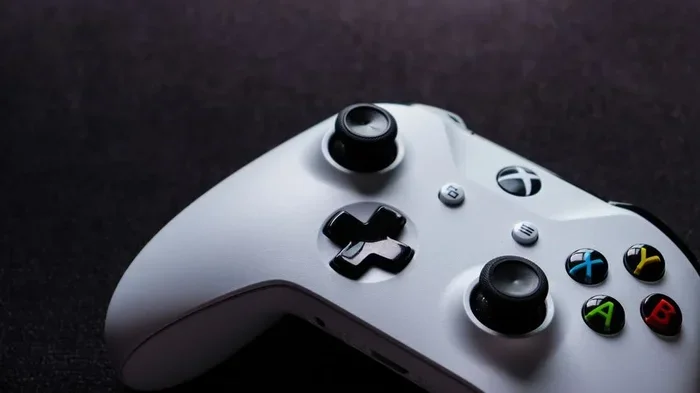
Xbox One S Black Screen on Startup Complete Fix Guide
Dealing with an Xbox One S black screen on startup is frustrating, but it is a common issue with proven fixes. This complete guide walks you through every solution, from simple HDMI checks to hard resets and factory restores. You will learn what causes the black screen, how to diagnose the problem fast, and which steps actually work. We break everything down into clear, easy-to-follow instructions anyone can use. By the end, your console will be up and running again.
You press the Xbox button. The light comes on. But the screen stays completely black. It is one of the most annoying moments any gamer can experience. The Xbox One S black screen on startup problem affects thousands of users every year. And the good news is that most fixes are simple and free.
This guide covers every proven solution. We start with the easiest checks and work our way up to more advanced steps. You do not need to be a tech expert to follow along. Each step is written in plain language so anyone can understand it. Let us get your console back to life.
Key Takeaways
- HDMI connection issues are the most common cause of the Xbox One S black screen on startup.
- A hard reset can clear temporary glitches that prevent the console from booting properly.
- Checking your power supply and cables often solves the problem without any advanced steps.
- Soft resetting display settings helps when the console boots but shows no image.
- Factory resetting is a last resort but can fix persistent black screen problems.
- Overheating and outdated firmware are less common but still important causes to check.
- Seeking professional help makes sense when none of the DIY fixes resolve the issue.
📑 Table of Contents
- Why Does the Xbox One S Black Screen on Startup Happen?
- Check Your HDMI Connection First
- Power Supply and Hard Reset Solutions
- Soft Reset and Display Settings Fixes
- Advanced Troubleshooting for Stubborn Black Screens
- When to Seek Professional Help
- How to Prevent the Black Screen Problem in the Future
- Final Thoughts
Why Does the Xbox One S Black Screen on Startup Happen?
Before jumping into fixes, it helps to understand what causes the problem. The Xbox One S black screen on startup can come from several different sources. Sometimes it is a simple cable issue. Other times, it points to a deeper hardware or software problem.
Here are the most common reasons this happens:
- Loose or damaged HDMI cables prevent the console from sending a signal to your TV.
- Power supply failures mean the console does not get enough electricity to fully boot.
- Temporary software glitches can freeze the startup process before the dashboard loads.
- Display output mismatches occur when the console tries to use a resolution your TV cannot handle.
- Overheating components cause the system to shut down or fail to display anything.
- Outdated system firmware can create boot conflicts that result in a black screen.
Understanding the root cause helps you pick the right fix. Most of the time, the problem is something simple like a loose cable or a minor software hiccup. Let us move into the solutions now.
Check Your HDMI Connection First
The number one reason for the Xbox One S black screen on startup is a faulty HDMI connection. It sounds too simple, but this fix works more often than you might think. Before trying anything else, go through these steps carefully.
Inspect the HDMI Cable
Look at both ends of your HDMI cable. Are they firmly plugged in? A loose connection is the sneakiest cause of the black screen problem. Unplug the cable from both the console and the TV. Then plug them back in until you feel them click into place.
Next, examine the cable itself. Look for any visible damage like fraying, bending, or pinching. If the cable looks worn, replace it with a new one. A good high-speed HDMI cable costs just a few dollars and solves many display problems.
Try a Different HDMI Port
Your TV likely has multiple HDMI ports. Switch the console to a different port and see if the image appears. Sometimes one port stops working while the others remain fine. This simple change can save you a lot of trouble.
Test with Another TV or Monitor
Plug your Xbox One S into a different display if you can. This helps you figure out whether the problem is with the console or the TV. If the image shows up on another screen, your original TV might be the issue. If the black screen persists, the problem lives inside the console.
Quick Tip: Always use the HDMI cable that came with your console, or buy one rated for 4K and high bandwidth. Cheap cables sometimes fail to carry a proper signal.
Power Supply and Hard Reset Solutions
If the HDMI cable is not the culprit, the next step is to check the power supply. The Xbox One S power brick, also known as the power supply unit, can cause big problems when it malfunctions. A hard reset is one of the most effective ways to clear startup errors.
How to Perform a Hard Reset
A hard reset completely cuts power to the console. This clears any temporary data that might be stuck during the boot process. Follow these steps exactly:
- Press and hold the Xbox button on the front of the console for ten seconds. The console will shut off completely.
- Unplug the power cable from the back of the console.
- Unplug the power cable from the wall outlet or power strip.
- Wait for at least thirty seconds. This gives the internal capacitors time to fully discharge.
- Plug the power cable back into the wall first, then into the console.
- Press the Xbox button once to turn it back on.
After the hard reset, check if the image appears on your screen. Many users report that this simple process fixes the black screen problem immediately. The console boots up clean without any lingering glitches.
Check the Power Brick Light
Look at the light on your Xbox power supply brick. What color is it? A solid white light means the power supply is working normally. A solid orange light suggests the power supply needs replacement. If there is no light at all, try a different wall outlet or power strip.
If the light is orange or absent, you may need to buy a new power supply. Microsoft sells official replacement bricks on their website. Make sure you get the correct model for the Xbox One S, since power supplies are not interchangeable across all Xbox models.
Quick Tip: Avoid using extension cords or power strips with surge protectators that have low wattage ratings. The Xbox One S needs a steady power supply to boot properly.
Soft Reset and Display Settings Fixes
Sometimes the console actually boots up, but the display settings get stuck. This creates the Xbox One S black screen on startup even though the system is running. A soft reset can correct these settings without losing your games or saved data.
Use the Xbox Button Combo
This method works when the console powers on but you see nothing on screen. Try this sequence:
- Press the Xbox button on the controller to make sure it is connected.
- Press the bind button on the console, then press the Xbox button on the controller again.
- If the console responds with a sound or the light changes, it is booting but the display is the issue.
Change the Display Output Resolution
If you can get into the console settings using a different TV or through the Xbox app on your phone, try changing the display resolution. Here is how:
- Go to Settings on the Xbox dashboard.
- Select General and then TV & display options.
- Change the resolution to 1080p or the native resolution of your TV.
- Save the changes and restart the console.
Sometimes the console tries to output at 4K, and older TVs cannot handle that signal. Dropping the resolution can bring the image back instantly.
Reset the Display Without Losing Data
You can also reset display settings from the startup menu. When you turn on the console, hold the Xbox button and the eject button at the same time for about ten seconds. This forces the console to reset its display settings to defaults. It does not delete any of your games or saves.
Quick Tip: If you use the Xbox app on your phone, you can navigate the console remotely. This is incredibly helpful when you cannot see the screen at all.
Advanced Troubleshooting for Stubborn Black Screens
When the basic fixes do not work, it is time to try more advanced steps. These methods address deeper software and hardware issues that can cause the Xbox One S black screen on startup.
Boot into Safe Mode
Safe mode loads the console with minimal drivers and software. This helps you determine whether a background app or update is causing the problem. To enter safe mode:
- Unplug the console from power.
- Press and hold the Xbox button on the console for fifteen seconds.
- Plug the power back in and press the Xbox button once.
- You should hear two beeps. The second beep signals that safe mode has loaded.
From safe mode, you can try clearing the cache or uninstalling recent updates. This mode is a powerful diagnostic tool that many people overlook.
Clear the System Cache
The Xbox One S stores temporary data in its cache. Over time, this data can become corrupted and cause boot problems. Clearing the cache is safe and does not delete any of your games or personal files. To do this:
- Go to Settings and select System.
- Choose Storage and then Clear local saved games.
- Restart the console normally.
This clears temporary system files that might be interfering with the startup process. It is one of the most overlooked fixes for the black screen problem.
Update or Reinstall System Software
An interrupted system update can leave your console stuck on a black screen. If you can access safe mode, try reinstalling the system software. You will need a USB drive formatted as FAT32 with the update file on it. Download the latest update from Microsoft’s official website and follow the on-screen prompts in safe mode.
Expert Insight: Always keep your console updated. Microsoft regularly releases patches that fix known startup bugs. Enabling automatic updates can prevent many black screen issues before they start.
Factory Reset the Console
A factory reset is the nuclear option. It wipes everything from the console and restores it to its original state. Use this only when every other fix has failed. You have two options:
- Reset and keep my games and apps: This removes settings but preserves your installed content.
- Reset and remove everything: This fully wipes the console and gives you a completely fresh start.
To factory reset, go to Settings, then System, then Console info, and select Reset console. Choose the option that fits your situation. Remember to back up any important saves to the cloud before you proceed.
After the reset, the console should boot up normally. If the black screen persists even after a factory reset, the problem is likely hardware-related.
When to Seek Professional Help
Most black screen issues resolve with the steps above. But sometimes the problem runs deeper than a software glitch. Knowing when to call for help saves you time and frustration.
Consider professional repair if:
- The console makes unusual clicking or grinding noises during startup.
- The power brick gets very hot or smells like burning plastic.
- The black screen persists after a full factory reset.
- The console turns on but immediately shuts off again.
- You have tried every fix and the problem started after dropping or damaging the console.
Microsoft offers official repair services through their support website. You can also visit an authorized service center. If your console is still under warranty, repairs are usually free. For older units, out-of-warranty repairs might cost more than buying a new console.
Quick Tip: Before sending your console for repair, back up all your saved games to Xbox Live or an external drive. This ensures you do not lose your progress.
How to Prevent the Black Screen Problem in the Future
Once you fix the black screen issue, you want to make sure it does not come back. Prevention is always easier than troubleshooting. Here are simple habits that keep your Xbox One S running smoothly:
- Keep cables secure: Check your HDMI and power connections every few months. Loose cables cause more problems than people realize.
- Allow proper ventilation: Keep the console in an open space with good airflow. Do not stack it between other devices.
- Update regularly: Enable automatic updates so your system software stays current.
- Use a surge protector: Power surges can damage the internal components and cause startup failures.
- Clean the console periodically: Dust buildup inside the console can lead to overheating, which triggers the black screen problem.
- Avoid moving the console while it is on: Sudden movement during operation can jar internal connections loose.
These small habits add up over time. They keep your console healthy and reduce the chances of encountering the black screen again.
Final Thoughts
The Xbox One S black screen on startup is a problem with many possible causes. But as you have seen, most of them have straightforward solutions. Start with the simplest fixes like checking your HDMI cable and performing a hard reset. Work your way up to soft resets, display settings, and factory resets if needed.
Remember that patience is your best tool. Do not rush through the steps. Follow each one carefully and test the console after every change. This systematic approach saves time and helps you identify exactly what fixed the problem.
Most importantly, do not panic. The black screen does not mean your console is dead. Nine times out of ten, it is a fixable issue that takes just a few minutes to resolve. Apply the steps in this guide, and your Xbox One S will be back to gaming in no time.
Frequently Asked Questions
Why does my Xbox One S show a black screen on startup?
The Xbox One S black screen on startup is usually caused by a loose HDMI cable, power supply issues, or a temporary software glitch. Sometimes the console boots but cannot send a display signal to your TV. Most of the time, a simple hard reset or cable check fixes the problem completely.
How do I force my Xbox One S to turn on when the screen is black?
Press and hold the Xbox button on the front of the console for ten seconds until it shuts off completely. Then unplug the power cable, wait thirty seconds, and plug it back in. Press the Xbox button once to turn it on again. This hard reset clears temporary glitches that cause the black screen.
Can a bad HDMI cable cause the Xbox One S black screen on startup?
Yes, absolutely. A damaged or loosely connected HDMI cable is the most common reason for the black screen problem. Try unplugging the cable from both ends, inspecting it for damage, and plugging it back in firmly. If the cable is old or frayed, replacing it with a new high-speed HDMI cable often solves the issue instantly.
Will factory resetting my Xbox One S fix the black screen problem?
Factory resetting can fix the black screen if the issue is caused by corrupted software or settings. However, this should be a last resort because it erases all your data. Always try simpler fixes first like checking cables, performing a hard reset, and resetting display settings before moving to a factory reset.
How do I know if my Xbox power supply is causing the black screen?
Check the light on your Xbox power brick. A solid white light means the power supply is working. A solid orange light or no light at all indicates a problem. Try plugging the console into a different wall outlet to rule out electrical issues. If the light stays orange, you likely need a replacement power supply.
What should I do if nothing fixes the Xbox One S black screen on startup?
If you have tried every fix in this guide and the black screen persists, the problem is likely hardware-related. Contact Microsoft Support for official repair options. If your console is still under warranty, repairs are usually free. For older units, you may want to weigh the cost of repair against buying a new console.
=== CONCLUSION ===
The Xbox One S black screen on startup does not have to be a permanent problem. With the right approach, you can fix it yourself at home without spending a dime. Start with the basics, work through each step patiently, and most likely one of these solutions will bring your console back to life.
Remember that the Xbox One S black screen on startup is a well-documented issue with many proven fixes. The HDMI check, hard reset, display settings adjustment, and factory reset cover the vast majority of cases. Keep this guide bookmarked for future reference, and share it with friends who might be dealing with the same frustrating problem.
Now go enjoy your games. Your Xbox One S is ready to play again.