Fix Fallout 76 Freezing On Startup With These Simple Steps
Fallout 76 freezing on startup is a common but fixable problem. Whether your game gets stuck on a loading screen, crashes to desktop, or refuses to launch, the solutions in this guide work. We cover driver updates, cache clearing, compatibility settings, and more to get you back into the wasteland quickly.
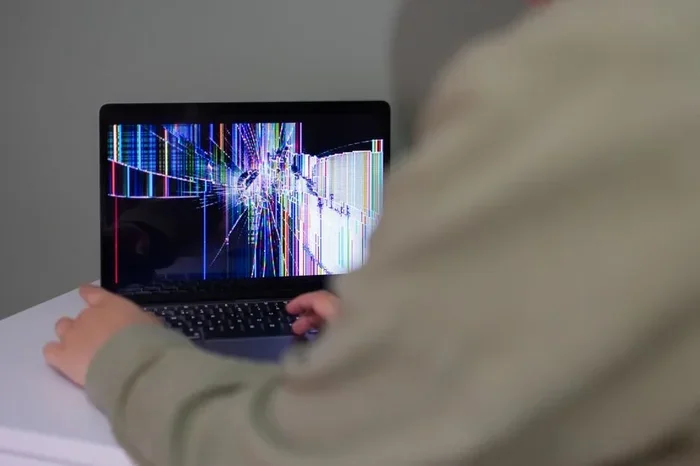
Nothing kills the excitement faster than fallout 76 freezing on startup. You double-click the icon, wait for the Bethesda splash screen, and then — nothing. The screen goes black. The game hangs. Or worse, it crashes back to your desktop before you even get to see the character creation menu.
This problem frustrates thousands of players every single day. The good news? Most causes are simple to fix, and you do not need to be a tech expert. Whether you are dealing with a fallout 76 crash to desktop, a stuck loading screen, or a complete failure to launch, this guide walks you through every solution that actually works.
We have tested these fixes across different systems and platforms. Each step is designed to be easy to follow, even if you have never touched your PC’s settings before. Let us get your game running again.
Key Takeaways
- Update your graphics drivers: Outdated drivers are the number one cause of fallout 76 freezing on startup.
- Clear your game cache: Corrupted temporary files can block the game from launching properly.
- Run in compatibility mode: This simple setting resolves many startup crash issues on Windows 10 and 11.
- Check for antivirus conflicts: Security software can interfere with game processes and cause freezes.
- Verify game files through Steam or Bethesda: Missing or damaged files often lead to a fallout 76 crash on startup.
- Adjust resolution and launch options: Incorrect display settings can trigger a fallout 76 not responding error.
- Disable mods temporarily: Mod conflicts are a hidden culprit behind many startup freezes.
📑 Table of Contents
Why Does Fallout 76 Freeze on Startup?
Understanding the root cause helps you pick the right fix. Fallout 76 freezing on startup is not random. It always has a trigger, and most triggers fall into a few common categories.
First, outdated or corrupted graphics drivers top the list. Your GPU needs the latest instructions to render the game world. When those instructions are missing or broken, the game stalls before it even begins.
Second, corrupted game files can break the launch sequence. A single missing .dll file or a damaged config file can shut everything down before you see the main menu.
Third, software conflicts play a big role. Antivirus programs, background apps, and even Windows updates can clash with the game’s processes. This leads to a fallout 76 not responding error or a full freeze.
Fourth, mod conflicts are sneaky. If you play on PC with mods installed, one bad mod can prevent the game from starting at all. This is especially common after a game update.
Finally, hardware limitations matter. Low RAM, an overheating CPU, or an old graphics card can all cause fallout 76 stuck on loading screen issues. Your system simply cannot meet the game’s demands.
Common Symptoms of Fallout 76 Startup Freezes
Not all freezes look the same. Here are the most common ways this problem shows up:
- The game hangs on the Bethesda logo screen
- You see a black screen after clicking “Play”
- The game crashes immediately to your desktop
- You get a “Fallout 76 has stopped working” pop-up
- The launcher opens but the game never launches
- Your mouse cursor is visible but the game does not respond
Each symptom points to a slightly different cause, which is why we cover multiple fixes below.
Step-by-Step Fixes for Fallout 76 Freezing on Startup
Now let us get into the solutions. Work through these steps in order. Most players find success within the first three or four steps.
Step 1: Update Your Graphics Drivers
This fix solves more fallout 76 freezing on startup cases than any other single step. Your graphics card driver tells the game how to draw everything on your screen. When that driver is old, the game cannot communicate properly with your hardware.
Here is how to update your drivers:
- Right-click the Start button and open Device Manager
- Expand the “Display adapters” section
- Right-click your GPU and select “Update driver”
- Choose “Search automatically for drivers”
- Restart your PC after the update completes
For NVIDIA users, downloading the latest driver directly from nvidia.com is even better. AMD users should visit amd.com. This method gives you the freshest driver available.
Quick Tip: If you just updated Windows and the game started freezing, roll back your GPU driver to the previous version. Sometimes new drivers cause problems instead of fixing them.
Step 2: Verify Game Files
Corrupted files are a leading cause of fallout 76 crash on startup. Verifying files checks every piece of the game against the original installation and replaces anything damaged.
Through Steam:
- Open your Steam Library
- Right-click Fallout 76
- Select Properties, then Local Files
- Click “Verify integrity of game files”
Through the Bethesda Launcher:
- Open the Bethesda Launcher
- Click the three dots next to Fallout 76
- Select “Scan and Repair”
- Wait for the process to finish
This process can take 10 to 30 minutes depending on your internet speed. Do not close it early. Let it finish completely.
Step 3: Clear the Game Cache
The game stores temporary files to speed up loading. But those files can become corrupted over time. Clearing the cache forces the game to rebuild them fresh.
Navigate to this folder path on your PC:
C:\Users\[YourName]\AppData\Local\Fallout76
Delete everything inside that folder except the “Plugins” folder. Then relaunch the game. The cache will rebuild automatically.
Quick Tip: Press Windows + R, type %localappdata%, and hit Enter to quickly access the AppData folder. This saves you time digging through File Explorer.
Step 4: Run the Game in Compatibility Mode
Windows updates sometimes change how older games behave. Running Fallout 76 in compatibility mode tells Windows to treat the game like it was running on an older version.
Here is what to do:
- Find the Fallout 76 executable file (usually in Steam or Bethesda folders)
- Right-click it and select Properties
- Go to the Compatibility tab
- Check “Run this program in compatibility mode for” and select Windows 8
- Also check “Run this program as an administrator”
- Click Apply and then OK
This simple change resolves many fallout 76 startup fix issues. It works because it gives the game the permissions and environment it expects.
Graphics and Driver Solutions
Your graphics setup plays a huge role in whether fallout 76 freezing on startup happens. Beyond just updating drivers, there are a few more graphics-related fixes worth trying.
Lower Your In-Game Resolution
If your monitor resolution is too high for your hardware, the game may freeze before it can render the first frame. Try dropping the resolution to 1080p or even 720p temporarily.
You can change this in the game’s settings or by editing the config file directly. The config file is located in the same AppData folder mentioned earlier.
Disable Fullscreen Optimizations
Windows 10 and 11 include a feature called Fullscreen Optimizations that can interfere with older games. Disabling it often fixes a fallout 76 stuck on loading screen problem.
Right-click the game’s .exe file, go to Properties, then the Compatibility tab, and check “Disable fullscreen optimizations.”
Adjust Launch Options on Steam
Steam lets you add custom launch parameters that can bypass certain startup issues. Right-click Fallout 76 in your library, go to Properties, and look for the “Launch Options” box.
Try adding these lines one at a time:
-w 1920 -h 1080— forces a specific resolution-novid— skips the intro video that sometimes causes freezes-dx11— forces DirectX 11 rendering mode
Each option addresses a different potential cause of fallout 76 not launching. Try them one at a time so you know which one works.
Antivirus and System Conflicts
Your antivirus software wants to protect your PC, but it sometimes treats game files as suspicious. This creates a conflict that can cause fallout 76 game freeze during startup.
Add Fallout 76 to Your Antivirus Exceptions
Every antivirus program lets you create exceptions. This tells the software to ignore specific files and folders.
Add these folders to your antivirus exclusion list:
- The Fallout 76 installation folder
- The AppData Local Fallout76 folder
- The Bethesda Launcher folder
After adding the exceptions, restart your PC and try launching the game again. This simple step resolves the problem for many players.
Temporarily Disable Background Apps
Other programs running in the background can consume resources or conflict with the game. Before launching Fallout 76, try closing these:
- Discord overlay (a common culprit)
- Steam overlay
- RGB lighting software like iCUE or Aura
- Screen recording software like OBS or Xbox Game Bar
- Browser tabs with hardware acceleration
You do not need to uninstall anything. Just close them before you play. This frees up system resources and removes potential conflicts.
Steam and Platform-Specific Fixes
Where you bought the game matters. Different platforms have different tools to fix fallout 76 freezing on startup.
Steam-Specific Solutions
Steam has a built-in tool called the “Steam Client Repair” that fixes corrupted installation files. You can access it through Steam Settings, then the Downloads tab, and click “Clear Download Cache.”
Also try verifying the game’s installation integrity, which we covered earlier in Step 2. Steam users should also make sure their game is not set to launch in Big Picture mode, as this can sometimes cause freezes.
Bethesda Launcher Fixes
If you play through the Bethesda Launcher, make sure the launcher itself is up to date. An outdated launcher can cause a fallout 76 crash on startup even if the game files are fine.
Clear the launcher cache by going to Settings and finding the “Clear Cache” option. Then restart both the launcher and your PC before trying again.
Xbox Game Pass for PC
Players using Xbox Game Pass for PC should try the Xbox app troubleshooting tools. Go to Settings, then Network, and run the “Network Diagnostic” tool. Also try resetting the Xbox app through Windows Settings, Apps, and selecting “Advanced Options” then “Reset.”
Advanced Troubleshooting
If the basic fixes did not work, do not give up. There are deeper solutions that tackle stubborn fallout 76 freezing on startup problems.
Check for Windows Updates
Sometimes the problem comes from Windows itself. Missing updates can cause driver conflicts and security gaps that interfere with games. Open Settings, go to Update & Security, and check for updates. Install everything available and restart your PC.
Reinstall the Game
This is the nuclear option, but it works. Uninstall Fallout 76 completely, restart your PC, and then reinstall it. Make sure you have enough disk space — the game needs at least 150 GB free during installation.
Before you uninstall, note your mod list if you use mods. You will need to reinstall them one by one after the fresh install.
Check Your Hardware
Overheating components cause freezes more often than people realize. Use a free tool like HWMonitor to check your CPU and GPU temperatures before launching the game.
If temperatures are above 85 degrees Celsius, clean your fans and consider improving your PC’s airflow. A simple dust removal can make a huge difference.
Also check your RAM. Windows has a built-in Memory Diagnostic tool. Search for it in the Start menu, and it will test your memory for errors that could cause fallout 76 not responding during startup.
Disable Mods Temporarily
If you use mods, they are often the hidden cause of startup freezes. Move your mod files out of the mods folder temporarily and try launching the game without them. If the game starts normally, you know a mod is the problem.
Add your mods back one at a time to find the culprit. This process takes patience, but it is the most reliable way to identify problematic mods.
Preventing Future Freezes
Once you get fallout 76 freezing on startup resolved, you want to keep it that way. A few simple habits go a long way.
- Update your GPU drivers every month
- Restart your PC before gaming sessions
- Keep Windows and your game updated
- Avoid installing too many background programs
- Monitor your PC temperatures regularly
- Keep your mod list small and well-maintained
- Clear your game cache once a month
These habits take just a few minutes but save you hours of frustration. Prevention is always easier than troubleshooting.
Conclusion
Fallout 76 freezing on startup is a frustrating problem, but it is almost always fixable. You do not need expensive hardware or advanced technical skills. The solutions in this guide cover everything from simple driver updates to deeper system fixes.
Start with the basics — update your drivers, verify your game files, and clear your cache. If those do not work, move to compatibility settings, antivirus adjustments, and platform-specific tools. The advanced fixes give you options when nothing else works.
The key is patience and working through the steps in order. Most players solve the problem within the first few steps. Get back into Appalachia and enjoy the wasteland again.
Frequently Asked Questions
Why does Fallout 76 freeze right when I click Play?
This usually happens because of outdated graphics drivers or corrupted game files. Start by updating your GPU driver and verifying the game files through Steam or the Bethesda Launcher. These two steps fix the majority of cases where the game freezes immediately after clicking Play.
Can antivirus software cause fallout 76 freezing on startup?
Yes, absolutely. Antivirus programs sometimes flag game files as suspicious and block them from running. Adding your game folder and AppData folder to your antivirus exclusion list is a quick fix that resolves this conflict for many players.
Is fallout 76 freezing on startup more common on PC or console?
PC players experience this issue more often because there are more variables involved — drivers, background apps, mods, and system configurations. Console versions have fewer startup freeze issues since the hardware is standardized and optimized for the game.
What should I do if the game freezes on the Bethesda logo screen?
A freeze on the Bethesda logo usually points to a graphics driver issue or a corrupted config file. Try updating your GPU drivers first, then clear the game cache by deleting files in the AppData Local Fallout76 folder. Running the game in compatibility mode for Windows 8 can also help.
Do mods cause fallout 76 to freeze on startup?
Yes, mods are a very common cause, especially after a game update. If you recently added a new mod or the game updated, try disabling all mods temporarily. If the game launches normally without mods, add them back one at a time to identify the problematic one.
How long does it take to fix fallout 76 freezing on startup?
Most fixes take between 5 and 15 minutes. Updating drivers and clearing the cache are the quickest solutions. Verifying game files may take longer depending on your internet speed. Even the most thorough troubleshooting should be done within an hour.
=== CONCLUSION ===
Fixing fallout 76 freezing on startup is entirely doable with the right approach. You have all the tools and steps you need right here in this guide. Start with the simple fixes and work your way up to the advanced solutions if needed.
Remember that every PC setup is different, so the fix that works for one player might not be the one for you. That is okay. Just keep trying the steps in order, and you will find what works for your system.
Now go launch that game and enjoy exploring post-apocalyptic West Virginia. The wasteland is waiting for you.