Windows 10 Blue Screen on Startup Troubleshooting Guide
A Windows 10 blue screen on startup can be scary, but most causes are fixable at home. This guide walks you through diagnosing the error code, running built-in repair tools, updating drivers, and checking your hardware. By the end, you will know exactly how to stop the blue screen and keep your PC stable.
There is nothing quite as frustrating as pressing your PC power button and seeing a bright blue screen instead of your desktop. The Windows 10 blue screen on startup error, often called the blue screen of death or BSOD, stops your computer in its tracks. You are stuck staring at a cryptic error message and wondering what went wrong.
The good news is that you do not need to be a tech expert to fix this problem. Most causes of a blue screen on startup are simple to diagnose and repair. This guide will take you through every step, from understanding why the error happens to applying real fixes that work. Whether your PC is a brand-new machine or an older laptop, you will find practical solutions here.
Key Takeaways
- Most blue screens on startup are caused by driver issues, corrupted files, or failing hardware.
- Windows Recovery Environment offers free built-in tools like Startup Repair and Automatic Repair.
- Booting into Safe Mode helps you isolate software problems from hardware failures.
- Running memory and disk diagnostics can catch hardware issues early.
- System Restore can roll back your PC to a time before the problem started.
- Resetting Windows 10 is a last resort but can fix stubborn startup crashes.
📑 Table of Contents
- Why Does Windows 10 Show a Blue Screen on Startup?
- How to Diagnose the Blue Screen Error Code
- Fix 1: Run Startup Repair and Automatic Repair
- Fix 2: Boot into Safe Mode and Update Drivers
- Fix 3: Check for Hardware Issues
- Fix 4: Restore or Reset Your System
- Comparison: Software Fixes vs. Hardware Fixes for Blue Screen on Startup
- Preventing Future Blue Screen Errors
- Conclusion
Why Does Windows 10 Show a Blue Screen on Startup?
A blue screen error on startup means Windows encountered a critical problem it cannot recover from during the boot process. Instead of loading normally, the system halts and displays a stop error screen. Understanding the root cause is the first step toward a permanent fix.
Common Software Causes
Software problems are the most frequent reason for a BSOD on startup. Corrupted system files, outdated drivers, and recent Windows updates can all trigger the error. Sometimes a newly installed program conflicts with Windows during boot, causing the crash before you even reach the desktop.
Another common culprit is a bad boot configuration. If the boot manager becomes damaged or misconfigured, Windows cannot load properly and throws a stop error. This often happens after a failed update or an interrupted shutdown.
When Hardware Fails During Boot
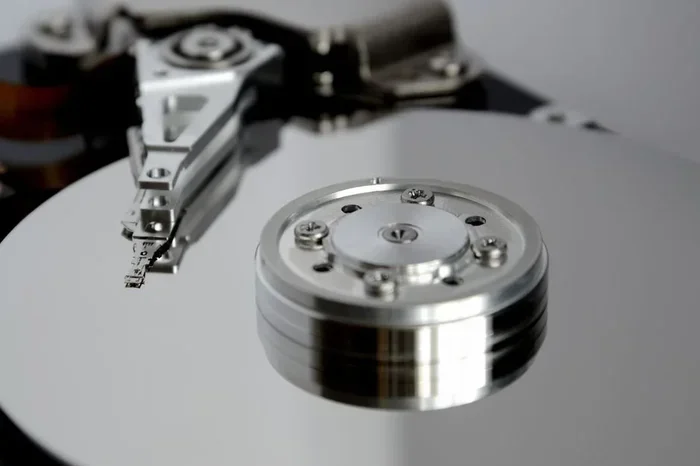
Hardware issues are less common but more serious. A failing hard drive, bad RAM stick, or overheating component can all cause a blue screen of death on startup. The system detects the problem during the boot sequence and shuts down to prevent further damage.
Overclocking instability is another hardware-related cause. If you have pushed your CPU or GPU beyond factory settings, the system may crash during the boot process until you return to default speeds. Even loose cables or a failing power supply can produce the same result.
How to Diagnose the Blue Screen Error Code
Every Windows 10 BSOD displays a unique error code or message. This code is your best clue for finding the right fix. Without it, you are essentially guessing, which wastes time and frustration.
Reading Your BSOD Error Message
When the blue screen appears, look closely at the text on the display. You will usually see a phrase like DRIVER_IRQL_NOT_LESS_OR_EQUAL or CRITICAL_PROCESS_DIED. Some screens also show a four-digit bug check code at the bottom. Write this down or take a photo with your phone.
If your PC restarts too quickly to read the message, you can disable automatic restart. Go to Settings, then System, then About, and click Advanced System Settings. Under Startup and Recovery, uncheck the box that says “Automatically restart.” This way, the error message stays on screen long enough for you to read it.
Using Event Viewer to Find Clues
If you cannot catch the error message, the Event Viewer tool can help. This built-in Windows feature logs system errors and warnings. You can access it by typing “Event Viewer” in the search bar when your PC does boot up.
Look under Windows Logs and then System. Filter for critical errors around the time of the crash. The event details often point to the specific driver or file causing the blue screen on startup. This method works especially well when the error code disappears too fast to read.
Fix 1: Run Startup Repair and Automatic Repair
Windows includes powerful built-in repair tools that can fix many startup blue screen errors automatically. These tools are accessible from the Windows Recovery Environment, a special troubleshooting mode that loads before the full operating system.
Accessing Windows Recovery Environment
To enter the recovery environment, you need to interrupt the boot process three times in a row. Start your PC and force it to shut off by holding the power button as soon as you see the blue screen or the Windows logo. Repeat this three times. On the fourth attempt, Windows will enter the Automatic Repair screen.
Alternatively, if you have a Windows installation USB or DVD, you can boot from it and select “Repair your computer.” This method works even if the blue screen appears every single time.
Running Startup Repair Step by Step
Once you are in the recovery environment, follow these steps:
- Click on “Troubleshoot” from the main menu.
- Select “Advanced Options.”
- Choose “Startup Repair.”
- Let Windows scan for problems and apply fixes automatically.
Startup Repair checks your boot configuration data and system files for corruption. It can fix missing or damaged files that prevent Windows from loading. In many cases, this single tool resolves the blue screen on startup without any additional steps.
Quick Tip: If Startup Repair fails, try the “Automatic Repair” option instead. It uses a broader set of diagnostics and may catch issues that Startup Repair misses.
Fix 2: Boot into Safe Mode and Update Drivers
Safe Mode is a stripped-down version of Windows that loads only the essential drivers and services. It is incredibly useful for troubleshooting because it lets you determine whether a software conflict or a hardware problem causes the blue screen error on startup.
How to Enter Safe Mode on Windows 10
If you can reach the recovery environment, navigate to Troubleshoot, then Advanced Options, then Startup Settings, and click Restart. You will see a list of boot options. Press F4 or 4 to start in Safe Mode. If you need network access, press F5 or 5 for Safe Mode with Networking.
Once in Safe Mode, your desktop will look different. The screen corners display the words “Safe Mode.” This confirms you are in the right environment to start diagnosing the problem.
Updating or Rolling Back Drivers
Outdated or incompatible drivers are a top cause of BSOD errors on startup. In Safe Mode, open Device Manager by right-clicking the Start button and selecting it from the menu. Look for any devices with a yellow warning triangle.
Right-click the problematic device and choose “Update Driver.” Select “Search automatically for drivers” and let Windows find the latest version. If the problem started after a recent driver update, choose “Properties,” then “Roll Back Driver” to return to the previous version.
Quick Tip: Graphics card drivers and network adapter drivers are the most common offenders. Visit the manufacturer’s website directly for the latest versions rather than relying solely on Windows Update.
Fix 3: Check for Hardware Issues
When software fixes do not work, it is time to look at your hardware. A blue screen on startup caused by a failing component will keep coming back no matter how many software repairs you try. Two built-in Windows tools can help you test your RAM and hard drive.
Running Windows Memory Diagnostic
Faulty RAM is a surprisingly common cause of startup crashes. Windows includes a built-in memory testing tool that checks your RAM for errors. To use it, go to the recovery environment, select “Troubleshoot,” then “Advanced Options,” and choose “Windows Memory Diagnostic.”
Select “Restart now and check for problems.” Your PC will reboot and run a thorough memory test. The process takes about 15 to 30 minutes. If errors are found, you may need to replace the faulty RAM stick. This is a hardware fix, not a software one.
Using CHKDSK to Fix Disk Errors
A damaged hard drive or SSD can also trigger a stop error on startup. The CHKDSK command scans your disk for bad sectors and file system errors. To run it, open Command Prompt from the recovery environment and type:
chkdsk C: /f /r /x
Press Enter and let the scan complete. It may take a while depending on your drive size. CHKDSK will attempt to fix any errors it finds. After the scan finishes, restart your PC normally and check if the blue screen on startup is resolved.
Fix 4: Restore or Reset Your System
If none of the previous fixes work, your system may need a deeper intervention. Windows offers two powerful options: System Restore and a full system reset. Both can eliminate persistent startup blue screens, but they work differently.
Using System Restore to Roll Back Changes
System Restore rolls your PC back to a previous state called a restore point. These points are created automatically before major changes like Windows updates or new software installations. If the blue screen of death started after a recent change, System Restore can undo it.
From the recovery environment, go to Troubleshoot, then Advanced Options, and select “System Restore.” Choose a restore point from a date when your PC was working fine. The process will not delete your personal files, but it will remove programs and drivers installed after that date.
When to Reset Windows 10 Completely
System Reset is the nuclear option. It reinstalls Windows 10 and gives you the choice to keep your personal files or remove everything. This fix addresses deep system corruption that no other tool can resolve.
From the recovery environment, choose “Troubleshoot,” then “Reset this PC.” Select “Keep my files” if you want to preserve your data, or “Remove everything” for a clean slate. Back up your important files first if you can access them in Safe Mode.
Comparison: Software Fixes vs. Hardware Fixes for Blue Screen on Startup
Not all blue screen problems are the same. Understanding whether your issue is software or hardware related helps you choose the right fix faster.
| Factor | Software-Related BSOD | Hardware-Related BSOD |
|---|---|---|
| Common Cause | Driver conflicts, corrupted files | Failing RAM, bad hard drive |
| Error Behavior | Intermittent, follows updates | Consistent, worsens over time |
| Best Fix Tool | Startup Repair, Safe Mode | Memory Diagnostic, CHKDSK |
| Cost | Free | May require part replacement |
| Difficulty | Easy to moderate | Moderate to advanced |
Use this table as a quick reference. If your blue screen on startup started right after a driver update or Windows patch, it is likely software-related. If the error has been getting worse over weeks or months, suspect a hardware failure.
Preventing Future Blue Screen Errors
Once you fix the current problem, you want to stop it from coming back. A few simple habits can keep your Windows 10 PC stable and crash-free.
- Keep your drivers updated. Check for updates monthly, especially for your graphics card and chipset.
- Install Windows updates promptly. These often include critical bug fixes for startup crashes.
- Avoid overclocking unless you know what you are doing. It can push components beyond stable limits.
- Run regular disk checks. Use CHKDSK every few months to catch disk errors early.
- Use a quality power supply. Unstable power can cause random crashes and data corruption.
- Keep your PC cool. Clean dust from fans and vents regularly to prevent overheating.
These preventive steps take only a few minutes each month but can save you hours of troubleshooting in the future. A well-maintained PC rarely encounters the dreaded Windows 10 blue screen on startup.
Conclusion
Dealing with a Windows 10 blue screen on startup is stressful, but it is almost always fixable. Start by reading the error code and using the built-in repair tools in Windows Recovery Environment. Boot into Safe Mode to isolate software conflicts, update your drivers, and run hardware diagnostics if needed. System Restore and a full PC reset are powerful options for stubborn problems.
The key is to work through the fixes in order, starting with the simplest solutions. Most people resolve the blue screen on startup without ever needing professional help. Apply the tips in this guide, and your PC should be back to normal in no time.
Frequently Asked Questions
What does the blue screen of death mean on Windows 10?
The blue screen of death, or BSOD, is a stop error that occurs when Windows encounters a critical problem it cannot recover from. On startup, it usually means a driver, system file, or hardware component is preventing Windows from loading properly.
Can a blue screen on startup be caused by a virus?
Yes, malware can corrupt system files or interfere with drivers, leading to a blue screen error on startup. Running a full antivirus scan in Safe Mode can help identify and remove any malicious software causing the problem.
How do I stop my PC from restarting during a blue screen?
Go to Settings, System, About, and click Advanced System Settings. Under Startup and Recovery, uncheck “Automatically restart.” This keeps the error message on screen so you can read the bug check code and diagnose the issue.
Is it safe to use System Restore to fix a blue screen?
Yes, System Restore is safe. It will not delete your personal files. It only removes programs and drivers installed after the selected restore point. This makes it a low-risk way to undo recent changes that may have caused the BSOD on startup.
When should I consider resetting Windows 10?
Reset Windows 10 only after trying Startup Repair, Safe Mode fixes, driver updates, and System Restore. If the blue screen on startup persists despite all these steps, a reset can clean up deep system corruption that no other tool can fix.
Can bad RAM cause a blue screen on startup?
Absolutely. Faulty RAM is one of the most common hardware causes of a blue screen of death on startup. Use the Windows Memory Diagnostic tool to test your RAM. If errors are found, replacing the defective memory stick usually resolves the issue completely.