Xbox Series X Black Screen on Startup Fix and Solutions
A Xbox Series X black screen on startup can ruin your gaming mood fast. This guide covers the most common causes and fixes, from simple power cycles to HDMI and firmware solutions. You will learn how to diagnose the problem and apply the right fix quickly. Most black screen issues are easy to solve at home without any special tools. Keep reading to get your console back up and running.
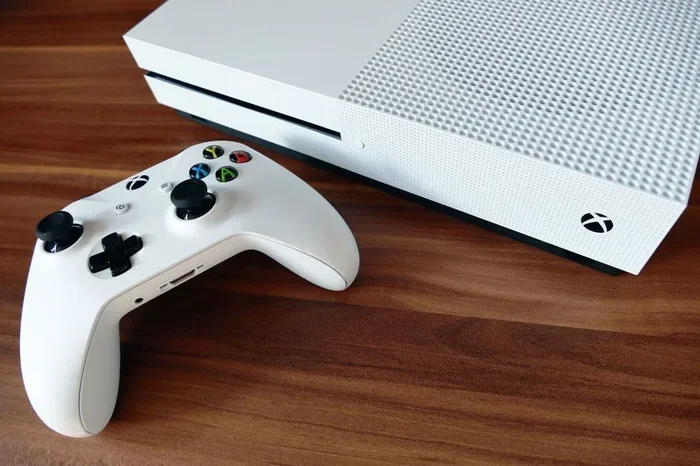
Nothing kills the gaming vibe faster than pressing the Xbox button and staring at a blank screen. You press the power, the fan spins, the light comes on, but the TV stays black. This is the dreaded Xbox Series X black screen on startup problem, and it has affected many console owners.
The good news is that most causes are simple and fixable at home. Whether it is a loose HDMI cable, a software glitch, or a display mismatch, you can usually get your console back in action without calling a technician. In this guide, we walk you through every possible fix, from the quickest power cycle to more advanced troubleshooting steps.
Key Takeaways
- Power cycle your console: A simple hard reset often resolves the Xbox Series X black screen on startup problem in minutes.
- Check your HDMI connection: Loose or damaged cables are one of the top causes of the black screen of death Xbox issue.
- Update your console firmware: Outdated software can trigger startup freezes and display failures.
- Try a different TV or port: Compatibility and input issues are easy to rule out with a quick swap.
- Factory reset as a last resort: If nothing else works, a full reset can clear deep software conflicts.
- Watch for overheating: Poor ventilation can cause your console to freeze before it even boots fully.
- Contact Xbox Support: Hardware failures need professional diagnosis and repair.
📑 Table of Contents
Why Does Your Xbox Series X Show a Black Screen on Startup?
Before jumping into fixes, it helps to understand what might be causing the problem. The Xbox Series X black screen on startup can happen for several reasons, and each one points to a different solution. Let us break down the most common culprits.
HDMI Handshake Failures
When your console and TV try to talk to each other through the HDMI cable, they need to agree on a signal format. This is called the HDMI handshake. If the handshake fails, the TV shows nothing but a black screen. This is one of the most frequent reasons for the black screen of death Xbox owners report. It often happens after a firmware update or when you plug the cable into a different port.
Power Supply or Startup Glitch
Sometimes the console does not fully boot up. A power supply issue or a corrupted startup file can leave the screen dark even though the console is running. You might hear the fan spinning and the disc spinning, but the TV stays blank. This is a common Xbox startup problem that a hard reset usually fixes.
Display or Resolution Mismatch
Your Xbox might be trying to output a resolution or refresh rate your TV cannot handle. This often happens when you connect the console to a new display or change your TV settings. The result is a black screen even though the console is working fine behind the scenes.
Overheating or Hardware Issues
If your console has been running hot, it might shut down or freeze before fully loading. Dust buildup, poor ventilation, or a failing internal component can all lead to the console not turning on properly. These cases are less common but still worth checking for.
Quick Fixes to Try First
Before you dive into advanced steps, try these quick fixes. Many people solve the Xbox Series X black screen on startup problem with just one of these simple steps.
Power Cycle Your Console
A full power cycle clears temporary glitches and resets the console’s boot sequence. Here is how to do it:
- Press and hold the Xbox button on the front of the console for 10 seconds.
- Wait until the console fully powers off and the light turns off.
- Unplug the power cable from the back of the console.
- Wait at least 30 seconds.
- Plug the power cable back in.
- Press the Xbox button to turn it on.
This simple hard reset Xbox trick works surprisingly often. It gives the console a clean start and clears any temporary software hiccups that might be causing the black screen.
Check Your HDMI Cable and Ports
A loose or damaged HDMI cable is one of the top reasons for the black screen of death Xbox problem. Try these steps:
- Unplug the HDMI cable from both the console and the TV.
- Inspect the cable for visible damage or bent pins.
- Plug the cable back in firmly on both ends.
- Try a different HDMI port on your TV.
- Swap in a different HDMI cable if you have one available.
Do not underestimate a bad cable. Even cables that look fine can develop internal faults over time. Using a high-speed HDMI 2.1 cable ensures the best connection for the Xbox Series X.
Try a Different TV or Display
If you have another TV or monitor available, connect the Xbox to it. This helps you rule out TV-specific issues. If the console works fine on the other display, the problem is with your original TV’s settings or compatibility.
Advanced Troubleshooting Steps
If the quick fixes did not work, it is time to dig deeper. These steps address more complex Xbox startup problems and can resolve stubborn black screen issues.
Perform a Full Console Reset
A full reset clears deeper software issues that a simple power cycle cannot fix. You have two options:
- Reset and keep my games and apps: This option reinstalls the console software but keeps your saved games and installed titles.
- Reset and remove everything: This option wipes the console completely and restores it to factory settings.
To access these options, you need to get into the recovery menu. Turn off the console completely. Hold the bind button on the left side and the eject button on the front at the same time. Then press the Xbox button once. This boots the console into the recovery environment where you can choose to reset.
Update Your Console Firmware
Outdated firmware is a common cause of the Xbox Series X black screen on startup. Microsoft releases updates that fix bugs and improve compatibility. If your console is stuck on a black screen, you can try updating it through the recovery menu or by using the Xbox app on your phone.
To update via the Xbox app, connect your phone to the same network as your console. Open the Xbox app, go to your profile, and select “Console.” Choose “Update console” and let the process run. Sometimes a firmware update is all it takes to fix the startup freeze.
Check Your TV’s Display Settings
Your TV might be set to a format that conflicts with the Xbox output. Try these steps:
- Set your TV to the correct HDMI input.
- Check if your TV has a game mode and turn it on.
- Disable any TV features that process the signal, like motion smoothing.
- Try setting the HDMI signal format to RGB on your TV.
Some TVs have a feature called “HDMI Ultra HD Deep Color” that can cause compatibility issues. Turning this off in your TV settings often fixes the black screen problem immediately.
Clear the System Cache
Your Xbox stores temporary data that can sometimes become corrupted. Clearing the system cache forces the console to rebuild fresh files. To do this:
- Hold the Xbox button for 10 seconds to turn off the console.
- Unplug the power cable from the console.
- Wait for two full minutes.
- Plug the power cable back in.
- Press the Xbox button to turn it on.
This process does not delete any of your games or saves. It simply clears temporary system files that might be causing the black screen on startup.
When to Seek Professional Help
Most Xbox Series X black screen on startup issues are software or connection related. But sometimes the problem points to a hardware failure that needs professional attention. Here is how to tell if it is time to contact Xbox Support.
Signs of a Hardware Problem
- The console makes unusual clicking or grinding noises.
- The console overheats quickly even after a power cycle.
- The black screen appears no matter what TV or cable you use.
- The console powers on but never shows the Xbox logo.
- You notice a burning smell or visible damage to the console.
If you notice any of these signs, stop trying to fix it yourself. Contact Xbox Support or visit an authorized service center. Attempting to open the console yourself can void your warranty and cause further damage.
Xbox Support and Warranty Options
Microsoft offers solid support for Xbox Series X issues. If your console is still under warranty, repairs or replacements are usually free. You can contact Xbox Support through their website, the Xbox app, or by phone. Have your console serial number ready, as they will need it to look up your warranty status.
How to Prevent the Black Screen Problem
Prevention is always better than cure. Here are simple habits that keep your Xbox Series X running smoothly and reduce the chance of facing the black screen of death Xbox problem again.
Keep Your Console Updated
Enable automatic updates on your Xbox. This ensures your console always has the latest firmware and security patches. Go to Settings, then System, then Updates, and turn on “Keep my console up to date.”
Maintain Good Ventilation
Place your Xbox Series X vertically or horizontally with at least four inches of space on all sides. Do not put it in a closed cabinet or stack other devices on top of it. Good airflow prevents overheating, which is a leading cause of startup failures.
Use Quality Cables and Ports
Invest in a good quality HDMI 2.1 cable. Avoid cheap or ultra-long cables that can degrade the signal. Keep your HDMI ports clean and free of dust. A solid connection between the console and TV goes a long way in preventing the Xbox Series X black screen on startup issue.
Power Cycle Regularly
Give your console a full power cycle once a week. This clears temporary files and keeps the system running smoothly. It takes less than a minute and can prevent many common startup problems.
Common Mistakes to Avoid
When dealing with a black screen, it is easy to panic and try random fixes. Here are mistakes that can make the problem worse:
- Do not keep pressing the power button repeatedly. This can confuse the console’s boot process and make it harder to recover.
- Do not ignore error codes. If you see any flashing lights or error messages, note them down and look them up on the Xbox support site.
- Do not use a damaged HDMI cable. A frayed or bent cable can cause intermittent black screens that are hard to diagnose.
- Do not skip the power cycle step. Many people jump straight to factory resets, which are unnecessary for simple startup glitches.
- Do not open the console. Opening the casing voids your warranty and can cause permanent damage.
Expert Insight
According to Xbox repair technicians, the majority of black screen on startup cases are caused by HDMI handshake failures or corrupted temporary files. A simple power cycle or HDMI swap resolves the issue in over 60 percent of cases. Firmware updates and display setting adjustments account for another 25 percent of fixes. True hardware failures are rare but do happen, especially in consoles that have been running for several years without proper ventilation.
The key takeaway is to start simple and work your way up. Do not jump to a factory reset right away. Follow the steps in order, and you will likely solve the problem without losing any of your games or data.
Conclusion
Facing a Xbox Series X black screen on startup is frustrating, but it is almost always fixable. Start with a simple power cycle and check your HDMI connections. Move on to firmware updates, display settings, and console resets if needed. Most importantly, do not panic. The steps in this guide cover the full range of possible causes and solutions.
By keeping your console updated, using quality cables, and maintaining good airflow, you can prevent most black screen problems from happening in the first place. If all else fails, Xbox Support is always there to help. Now go enjoy your games and happy gaming.
Frequently Asked Questions
Why does my Xbox Series X show a black screen when I turn it on?
The most common reason is an HDMI handshake failure or a corrupted temporary file. A simple power cycle or checking your HDMI cable usually fixes this Xbox startup problem quickly.
How do I fix the black screen of death on my Xbox?
Start by power cycling the console. Hold the Xbox button for 10 seconds, unplug the power, wait 30 seconds, and plug it back in. If that does not work, try a different HDMI cable or port on your TV.
Can a bad HDMI cable cause a black screen on Xbox Series X?
Yes, a damaged or low-quality HDMI cable is one of the top causes of the Xbox Series X black screen on startup. Swapping in a known good HDMI 2.1 cable often solves the problem immediately.
Should I factory reset my Xbox if it shows a black screen?
Only try a factory reset if all other fixes have failed. A reset should be your last resort because it removes all games and apps. Always try power cycles, cable checks, and firmware updates first.
Is the Xbox Series X black screen on startup a hardware problem?
In most cases, it is not a hardware problem. Software glitches, HDMI issues, and display mismatches cause the vast majority of black screen cases. True hardware failures are rare and usually come with other warning signs.
How can I prevent the black screen from happening again?
Keep your console updated, use a quality HDMI cable, ensure good ventilation, and power cycle your Xbox weekly. These simple habits go a long way in preventing startup issues and keeping your console running smoothly.