MacBook Air Keyboard Not Working On Startup Troubleshooting
Your MacBook Air keyboard not working on startup can be frustrating, but it is usually fixable with simple steps. This guide covers everything from software resets to hardware fixes that will get your typing back on track. We walk you through SMC reset, safe mode boot, and when to seek professional help.
You press the power button on your MacBook Air, and the screen lights up. But there is one problem. The keyboard not working on startup. You cannot type your password. You cannot navigate. You are stuck. This is more common than you might think, and it happens to MacBook Air users of all ages and models. The good news is that most causes are fixable without a trip to the Apple Store.
In this guide, we will walk you through every step to get your MacBook Air keyboard working again. Whether your keys are completely unresponsive, some keys stick, or the keyboard lights up but produces no output, we have you covered. Let us dive in.
Key Takeaways
- Soft reset and SMC reset solve most MacBook Air keyboard not working on startup issues quickly.
- Safe mode booting helps you isolate whether the problem is software or hardware related.
- Bluetooth interference and sticky keys are common hidden causes many users overlook.
- macOS updates and keyboard settings adjustments can resolve key repeat and input lag problems.
- Hardware damage like liquid spills or worn-out butterfly mechanisms may need professional repair.
- Using an external keyboard is a reliable temporary workaround while you troubleshoot.
📑 Table of Contents
Why Your MacBook Air Keyboard Fails on Startup
Before we jump into fixes, it helps to understand what might be going wrong. A keyboard not responding on startup can stem from several root causes. Some are simple software glitches. Others point to deeper hardware issues. Knowing the cause saves you time.
Common Causes of Keyboard Failure
Here are the most frequent reasons your MacBook Air keys not working when you power on:
- SMC firmware glitch – The System Management Controller controls keyboard backlighting and power functions. When it malfunctions, keys may not register.
- PRAM/NVRAM corruption – This memory stores keyboard settings and input preferences. Corrupted data can prevent keys from working at boot.
- Sticky or trapped debris – Dust, crumbs, or tiny particles can block key mechanisms, especially in older butterfly keyboard models.
- Bluetooth interference – If you use a Bluetooth keyboard, wireless signal conflicts can cause startup input failures.
- Liquid damage – Even a small spill can corrode internal connections and disable keys permanently.
- macOS software bug – A failed update or corrupted system file can break keyboard drivers during the boot process.
Each of these causes has a specific fix. Let us go through them one by one.
Step-by-Step Fixes for MacBook Air Keyboard Not Working on Startup
Now we get to the practical part. These steps are ordered from simplest to most advanced. Start at the top and work your way down. Most users find a solution in the first few steps.
Step 1: Perform a Soft Reset
A soft reset is the easiest and fastest fix. It clears temporary memory and often resolves minor software glitches that cause keyboard failure.
- Press and hold the power button for 10 seconds.
- Release the button when the screen goes dark.
- Wait 5 seconds, then press the power button again to turn on your Mac.
This simple action resets the keyboard controller without erasing any data. Try this first every time your MacBook Air keyboard not working on startup issue appears.
Step 2: Reset the SMC
The System Management Controller manages many low-level functions on your MacBook Air. When the SMC gets stuck, your keyboard can fail during boot. Resetting it is safe and often effective.
For MacBook Air models with Apple Silicon (M1, M2, M3):
- Shut down your MacBook Air completely.
- Wait 30 seconds.
- Press and hold the power button for 10 seconds.
- Release and wait for the Apple logo to appear.
For Intel-based MacBook Air models, the process is slightly different:
- Shut down your Mac.
- Press Shift + Control + Option on the left side, along with the power button.
- Hold all four keys for 10 seconds.
- Release everything and press the power button to start up.
After the SMC reset, check if your keyboard backlight turns on and if keys respond at the login screen.
Step 3: Reset PRAM/NVRAM
PRAM (Parameter RAM) stores settings like keyboard repeat rate, display resolution, and startup disk preference. When PRAM data becomes corrupted, your keyboard shortcuts and key inputs may fail on boot.
For Intel MacBooks:
- Shut down your Mac.
- Press the power button, then immediately hold Command + Option + P + R.
- Hold these keys for about 20 seconds.
- Release and let your Mac start normally.
Apple Silicon MacBooks handle PRAM resets automatically during startup. A simple power cycle usually does the trick.
Step 4: Boot Into Safe Mode
Safe Mode loads only the essential system software. If your keyboard works in Safe Mode but not during normal startup, the problem is likely a software conflict or a login item causing the issue.
For Apple Silicon MacBooks:
- Press and hold the power button until “Loading startup options” appears.
- Select your startup disk.
- Hold the Shift key and click “Continue in Safe Mode.”
For Intel MacBooks:
- Press the power button.
- Immediately hold the Shift key until you see the login screen.
Once in Safe Mode, test your keyboard. If it works, a third-party app or kernel extension is likely the culprit. You can then troubleshoot software conflicts by removing recent apps or extensions one by one.
Step 5: Check Keyboard Settings and Key Repeat
Sometimes the fix is simpler than you think. Your keyboard settings might be configured in a way that makes keys appear unresponsive.
Go to System Settings (or System Preferences on older macOS) and navigate to Keyboard. Check these settings:
- Key Repeat – Set this to a fast rate. A slow repeat rate can feel like keys are not working.
- Delay Until Repeat – Lower this value for quicker response.
- Sticky Keys – If enabled, this changes how modifier keys work and can confuse new users.
- Slow Keys – This accessibility feature requires keys to be held longer. Disable it if you did not turn it on intentionally.
These settings can sneak into your configuration after a macOS update, causing the illusion that your keyboard not working on startup is a hardware problem.
Step 6: Disconnect External Devices
External devices like USB hubs, Bluetooth peripherals, or docking stations can sometimes interfere with the built-in keyboard during boot. Disconnect everything except the power cable and try starting up again.
If your MacBook Air keyboard works after removing external devices, reconnect them one at a time to identify the culprit. A faulty USB device can sometimes send electrical noise that disrupts the internal keyboard controller.
Hardware Fixes for Persistent Keyboard Problems
If software fixes do not solve the problem, your MacBook Air might have a physical issue. Here is what to look for and how to address it.
Clean Your Keyboard Properly
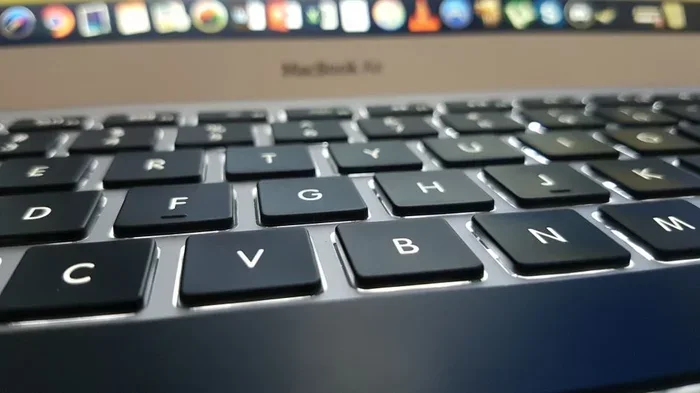
Dust, crumbs, and debris are the enemies of laptop keyboards. Over time, particles get trapped under keys and prevent them from making proper contact. This is especially true for the butterfly keyboard design used in older MacBook Air models.
Here is how to clean safely:
- Turn off your MacBook Air and unplug it.
- Hold the laptop at a 75-degree angle.
- Use compressed air to blow between the keys in short bursts.
- Gently brush the key surfaces with a soft, lint-free cloth.
- For sticky keys, dampen a cotton swab with isopropyl alcohol and clean around the key edges.
Never use excessive liquid or insert sharp objects between keys. You want to remove debris, not damage the mechanism further.
Check for Liquid Damage
If you have spilled any liquid on your MacBook Air, even months ago, it could be causing gradual keyboard failure. Liquid corrosion can eat through the thin keyboard ribbon cable over time.
Signs of liquid damage include:
- Keys that work intermittently.
- Sticky or spongy key feel.
- Corrosion visible around key edges.
- Multiple keys failing at once.
If you suspect liquid damage, stop using the laptop and take it to an Apple Store or certified repair technician. Continued use can worsen the damage.
Keyboard Replacement Options
When all else fails, a key replacement or full keyboard assembly swap might be necessary. Apple offers keyboard service through its support team. Third-party repair shops can also handle this at a lower cost.
Before committing to replacement, consider these options:
- AppleCare coverage – If you have AppleCare, keyboard repair or replacement is often free.
- Apple Store Genius Bar – Book an appointment for professional diagnosis.
- Authorized service providers – They use genuine Apple parts and follow proper procedures.
- Independent repair shops – More affordable, but verify they have experience with MacBook Air models.
The cost varies widely. A single key cap replacement might cost under $50, while a full keyboard assembly can range from $200 to $400 depending on your model.
Workarounds While You Fix the Keyboard
Waiting for a repair or troubleshooting process can be frustrating. Here are some practical workarounds to keep using your MacBook Air in the meantime.
Use an External Keyboard
A USB or Bluetooth keyboard is the simplest workaround. Plug in a wired keyboard or pair a wireless one and you can use your Mac normally while you work through the troubleshooting steps.
Popular options include:
- Apple Magic Keyboard – Seamless pairing with macOS.
- Logitech K380 – Compact and Bluetooth-enabled.
- Keychron K2 – Great for users who prefer mechanical keys.
An external keyboard also helps you determine whether the problem is with the built-in keyboard or with the macOS system itself.
Use the On-Screen Keyboard
macOS includes a built-in on-screen keyboard that lets you click keys with your mouse or trackpad. This is helpful if only a few physical keys are not working.
To enable it:
- Go to System Settings.
- Navigate to Accessibility.
- Select Keyboard.
- Turn on the on-screen keyboard option.
This is not ideal for heavy typing, but it works well for entering your password at startup or typing short commands.
Enable Voice Control
Apple’s Voice Control feature lets you navigate your Mac entirely with your voice. You can open apps, type text, and click buttons without touching the keyboard at all.
To set it up:
- Go to System Settings.
- Select Accessibility.
- Choose Voice Control.
- Turn it on and follow the setup prompts.
This is a powerful tool for users dealing with persistent keyboard input failure. It takes a little getting used to, but it can be a lifesaver.
Preventing Future Keyboard Problems
Once you get your MacBook Air keyboard working again, you will want to keep it that way. Prevention is always better than cure.
Keep Your macOS Updated
Apple regularly releases macOS updates that fix known bugs, including keyboard-related issues. Go to System Settings, then General, then Software Update, and install any available updates. Staying current with macOS maintenance reduces the risk of software-related keyboard failures.
Maintain Good Hygiene
Keep food and drinks away from your laptop. Regularly clean your keyboard with compressed air. A clean keyboard lasts longer and performs better.
Use a Keyboard Cover
A thin keyboard skin or cover protects against dust, crumbs, and minor spills. These are inexpensive and add a layer of defense against the most common causes of keyboard failure.
Avoid Excessive Key Pressure
The butterfly keyboard design in older MacBook Air models was sensitive to pressure. Avoid pressing keys too hard or resting heavy objects on your closed laptop. Gentle typing extends the life of your keyboard mechanism.
When to Seek Professional Help
Not every keyboard problem can be fixed at home. Here are signs that you should seek professional assistance:
- Your keyboard still does not work after trying all software fixes.
- You see visible damage, such as swollen keys or corrosion.
- Multiple keys stopped working after a drop or impact.
- Your MacBook Air is still under AppleCare or warranty.
- You are uncomfortable opening your laptop or handling internal components.
Apple Support can diagnose the issue remotely or schedule an in-person appointment. For older models out of warranty, a reputable local repair shop is often the most cost-effective option.
Remember that a keyboard not working on startup does not always mean your entire keyboard is dead. Sometimes only specific keys fail, or the issue is intermittent. A professional diagnosis can pinpoint exactly what is wrong and save you money on unnecessary replacements.
Conclusion
Dealing with a MacBook Air keyboard not working on startup is stressful, but it is almost always solvable. Start with the simple fixes like a soft reset and SMC reset. Move on to Safe Mode booting and keyboard settings checks. If those do not work, look at hardware causes like debris, liquid damage, or worn-out mechanisms. And do not forget the workarounds that keep you productive while you troubleshoot.
The key is to stay patient and work through the steps systematically. Most users find that their MacBook Air keyboard not working on startup issue resolves within the first few steps. You are not alone in this, and there is always a solution waiting for you.
Take action today. Try the fixes in this guide, and get back to typing without frustration. Your MacBook Air is a powerful machine, and a working keyboard is essential to unlocking its full potential.
Frequently Asked Questions
Why does my MacBook Air keyboard stop working when I turn it on?
The most common reason is a software glitch in the SMC or PRAM settings that control keyboard input during boot. A corrupted macOS update, Bluetooth interference, or sticky debris under the keys can also cause this. Try a soft reset and SMC reset first, as these resolve the issue in most cases.
Can a dead battery cause the MacBook Air keyboard not to work on startup?
Yes, a completely drained battery can prevent your MacBook Air from booting properly, which may make the keyboard appear unresponsive. Connect your charger, wait a few minutes, and try turning it on again. If the battery is old or damaged, it may need replacement.
Is it safe to reset the SMC on my MacBook Air?
Absolutely. An SMC reset is safe and does not delete any data. It simply resets the power management and input control settings. This is one of the most recommended first steps for fixing keyboard issues at startup.
How do I know if my keyboard problem is hardware or software?
Boot into Safe Mode and test your keyboard. If it works in Safe Mode, the issue is likely software-related. If it still does not work, the problem is probably hardware-related, such as a damaged ribbon cable or failed key mechanism.
Can dust really cause my MacBook Air keyboard to fail?
Yes, even small particles like crumbs or dust can get trapped under keys and prevent them from registering presses. This is especially common with the butterfly keyboard design. Regular cleaning with compressed air can prevent this issue.
How much does it cost to replace a MacBook Air keyboard?
Costs vary by model and repair provider. Apple charges between $200 and $400 for a full keyboard assembly if you do not have AppleCare. Independent repair shops often charge less, and single key cap replacements can cost under $50. Always get a diagnosis first to avoid unnecessary expenses.